A MetaTrader VPS keeps your trading platform running when you close your laptop. It is a rented Windows computer in a data centre: you open its desktop over the internet and use MetaTrader there, much as you would on your own PC. A specialist provider such as ForexVPS supplies the Windows hosting, so you can focus on setting up your trading workspace.
The main benefits at a glance:
- Leave your own computer switched off. MetaTrader can keep running on the server, independently of your laptop, home power supply and Wi-Fi.
- Access the same workspace from different devices. Open your charts, indicators and trading tools from a Windows PC, Mac, tablet or phone.
- Spend less time on local setup. Windows is already available on the server. Browser access lets you reach it without installing a remote-desktop app on your own computer.
- Get a shorter connection to your broker. A suitable server location can reduce network delay between MetaTrader and the broker, helping orders reach the broker sooner.
- Get help with the hosting. ForexVPS offers round-the-clock technical support, so you have someone to contact about server access and hosting issues.
- Keep trading tools working while you are away. This includes terminal-based alerts, trailing stops and, if you use them, automated trading strategies.
Below, you will set up the server, connect MetaTrader to your broker and learn how to leave it running. The same basic process applies to MetaTrader 4 and MetaTrader 5; use the version your broker account supports.
How does a MetaTrader VPS work?
VPS stands for virtual private server. Think of it as a second computer that lives in a data centre. It has its own Windows desktop, memory and storage. Your device displays that desktop and sends your mouse clicks and keyboard input to it.
- Your devicePC, Mac or phone
- MetaTrader on the VPSWindows in a data centre
- Your brokerTrading account and orders
You install MetaTrader on the VPS and sign in to your trading account there. When you disconnect from the remote desktop, the server continues working. The next time you connect, you return to the same workspace.
That is useful for manual trading too: you can maintain one set of charts and desktop tools instead of recreating your setup on every device. For automation, the server also provides a place for strategies to run continuously.
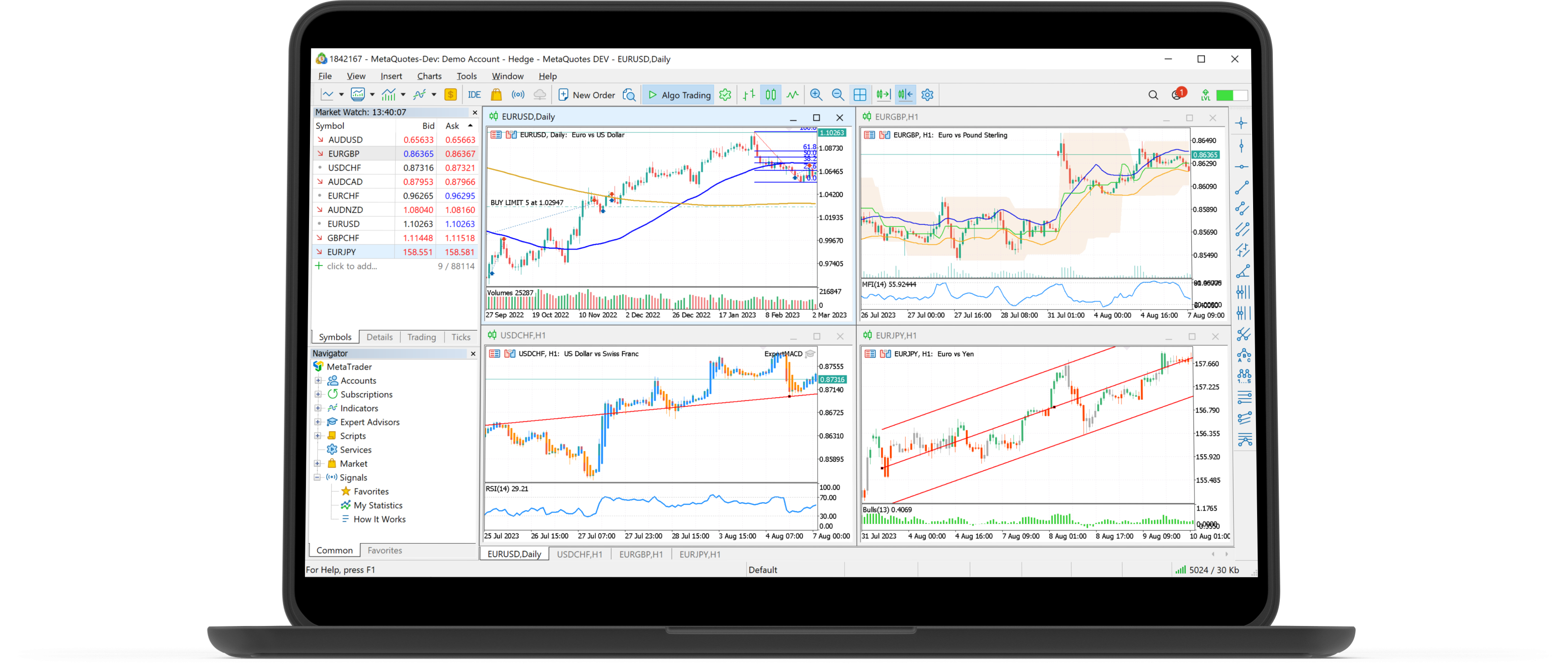
Set up MetaTrader on a VPS in six steps
Before you begin, have your broker's MetaTrader download link, trading account number, password and exact broker server name ready. A demo account is convenient for checking the setup. You will also need the Windows login details supplied with your VPS.
1. Choose a plan and server location
Start with the number of MetaTrader installations you want to run. One platform with a few charts needs fewer resources than several platforms running many indicators or automated strategies.
For a starting point, the ForexVPS Core plan lists two CPU cores, 4 GB of memory and 100 GB of storage. The provider suggests it for one to three trading platforms; actual capacity depends on what those platforms are doing.
For ongoing use, we recommend annual billing to save compared with monthly payments.
Choose a data centre close to your broker's trading server, which may be in a different country from its head office or your home. The broker latency directory can help you compare locations. Ask support if you are unsure which location fits your broker.
A shorter network journey can improve connection speed. Actual order execution also depends on the broker, liquidity and market conditions; the VPS-to-broker connection is only one part of it.
2. Open your Windows desktop
Browser access is a simple place to start. In your ForexVPS client area, open My Services, choose your service and use Login to your service, then Launch in browser. The provider's guide then shows New Session (RDP), where you enter the Windows username and password for the VPS.
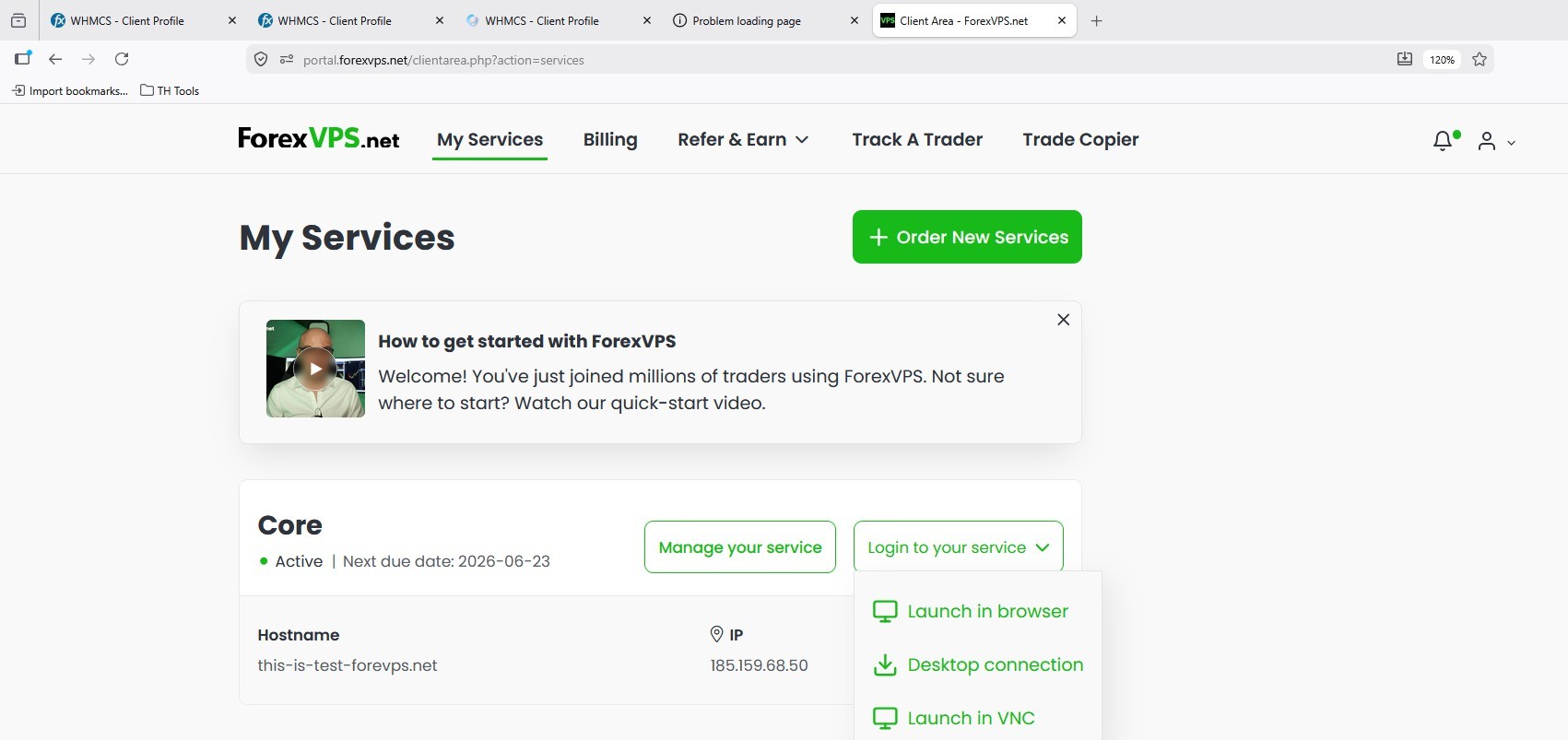
You should now see a Windows desktop inside your browser. This is the remote computer where you will install MetaTrader.
Keep the illustrated browser connection guide handy for the current screens. If you prefer a dedicated remote-desktop app, the provider also has connection instructions for Windows, Mac and iPhone or Android.
3. Install MetaTrader on the server
Open the web browser inside the remote Windows desktop, visit your broker's official website and download its MetaTrader installer. Run the installer there and open the platform when installation finishes.
Using the broker's download helps you get the right platform and server details. Check the version carefully: a MetaTrader 4 account signs in to MetaTrader 4, and a MetaTrader 5 account signs in to MetaTrader 5.
If MetaTrader is already installed, you can use that installation if it supports your broker and account. The installation walkthrough shows the process from the server's browser.
4. Connect your broker account and arrange your charts
In MetaTrader, choose File → Login to Trade Account. Enter your account number and trading password, then select the broker server that matches your account. Demo and live accounts often use different servers.
Open a chart and check that prices update while the market is open. If the server is missing, follow the broker server guide or ask your broker for its exact name.
Now arrange your charts, add the indicators you use and save the workspace as a profile.
5. Disconnect and check that MetaTrader stays open
Leave MetaTrader open, then disconnect the remote-desktop session using the connection's disconnect control. Avoid choosing Sign out or Shut down inside Windows, as those actions close your session or stop the server.
Reconnect once to check that your charts are still open. You can then close your laptop while MetaTrader continues on the VPS. Your own internet connection is only needed when you want to access the remote desktop.
The disconnect guide shows which control to use.
6. Set up a return to work after restarts
Windows updates and planned maintenance can restart a server. To restore your workspace afterwards, configure MetaTrader to open again automatically.
ForexVPS documents a MetaTrader AutoStart Setup tool. Its restart guide explains how to select your terminals and configure Windows automatic sign-in. Follow the current instructions, then test a restart at a suitable time. Check that the platform starts, reconnects to the broker and restores the tools you need.
Schedule updates around your trading hours using the Windows update guide.
Use the same MetaTrader desktop on a Mac or phone
MetaTrader on Mac
A Windows VPS lets you use the Windows edition of MetaTrader from your Mac. The platform and its tools run on the server; your Mac opens the remote desktop through a browser or Windows App. This can be convenient when you want the same setup across several devices or use tools built for Windows.
For local use, MetaQuotes also provides a Mac installer, which uses Wine to run MetaTrader. The reason to choose a VPS is the independent, remotely accessible computer: it keeps working when your Mac sleeps or shuts down.
MetaTrader on a mobile phone
There are two useful ways to access your trading from a phone:
| What you want to do | Which option to use |
|---|---|
| Check your account, place a manual trade or adjust an order | The MetaTrader mobile app, signed into the same broker account |
| View the exact desktop charts or change a tool running on the VPS | A remote-desktop connection to the Windows server |
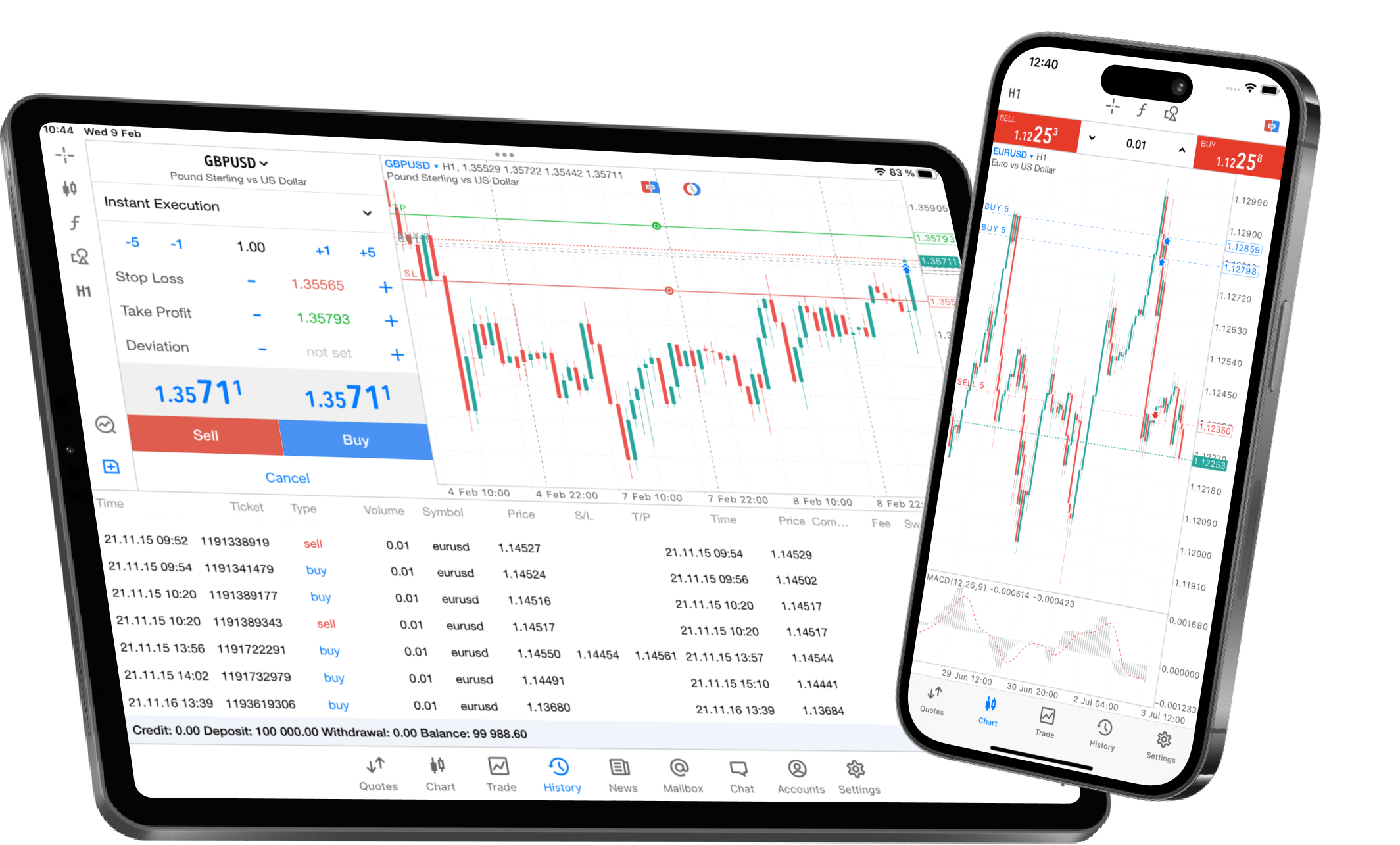
The mobile app shows your trading account, but it does not reproduce the desktop's custom indicators or run Expert Advisors. Remote desktop gives you access to those tools on the server. A larger screen is more comfortable for the initial setup; a phone is useful for quick checks afterwards.
Run automated strategies and Expert Advisors around the clock
An Expert Advisor, often shortened to EA, is a program that runs inside MetaTrader. Depending on its design, it can analyse markets, manage trades or place orders automatically. The platform must remain running for that program to work.
Install your EA in MetaTrader on the VPS, attach it to the appropriate chart and configure its settings. Enable algorithmic trading in the platform and the EA's own permissions when the strategy needs to place trades. Start with a demo account and check the Experts and Journal tabs for status messages. The MetaTrader documentation explains the platform controls.
Keep one intended instance of each strategy running. If you move an EA from your laptop to the VPS, stop the old instance so that two copies do not submit duplicate orders. After a restart, confirm that the EA, its chart and trading permissions have returned as expected.
You can then inspect the strategy from your phone through remote desktop. The trading program continues to run on the server, even when the phone is offline.
What does the hosting provider take care of?
With ForexVPS, you rent a Windows environment and receive technical hosting support. You do not need to buy a separate computer, keep it powered at home or install the server operating system yourself. The provider also describes platform preinstallation on request; confirm what is included in your chosen package with support.
Your own setup still includes the broker login, charts, indicators and strategy settings. Keep those settings backed up, schedule Windows updates and check that the platform is connected. If you want help with ongoing maintenance, ask support which tasks are included in your package.
Common setup questions
Does a VPS make MetaTrader faster?
It can reduce the time data takes to travel between the platform and the broker if the server location has a better connection. That may help orders reach the broker sooner, especially for strategies running directly on the VPS. When you click manually over remote desktop, your connection to the VPS also contributes to the delay. The latency measurement guide explains how to check the broker connection.
Do open trades stay active when I close MetaTrader?
Positions and orders accepted by your broker remain on the broker's servers, including accepted stop-loss and take-profit orders. Tools that work inside the terminal, such as MetaTrader trailing stops and Expert Advisors, need the platform running to keep carrying out their work. This is where continuous hosting can be useful.
Can I run more than one account?
You can run separate MetaTrader installations for accounts that need to stay connected simultaneously. Each installation uses memory and processing power. Choose the plan for the combined workload and increase resources if you add more platforms or demanding tools.
Is this the same as MetaTrader's built-in virtual hosting?
MetaTrader's built-in virtual hosting transfers a supported trading environment for automated operation. A Windows VPS gives you a full Windows desktop, where you can install MetaTrader and other compatible applications.
What should I check if something is not working?
| What you see | First thing to check |
|---|---|
| You cannot open the remote desktop | The service status and Windows login details; contact hosting support if needed |
| MetaTrader shows no connection | The broker server name, account credentials and connection status |
| Charts are open but prices are not moving | Whether that instrument's market is currently open |
| An EA is loaded but does not trade | Its settings, trading permissions and the Experts/Journal messages |
| MetaTrader is missing after a restart | The automatic sign-in and terminal startup configuration |
Your next step
Choose a server location that suits your broker, install MetaTrader and check the connection with a demo account. Once disconnecting and restarting both work as expected, you have a trading workspace you can return to from your PC, Mac or phone.