TradingCode Trade Manager / Guide
TradingCode Trade Manager: user guide
The user guide from the download, to read in your browser. The installation guide and the guides to the stop rules and to phone and VPS come with the download as PDFs.
Contents
Version 0.8.1. For MetaTrader 5 on a Windows computer or a Mac (also on a VPS), not for the MetaTrader app on your phone.
This guide explains what the Trade Manager does, how to use it and how to use it to trade the ideas from the TradingCode signals channel. Installation is summarised in chapter 2 and described in detail in the installation guide.
1. What the Trade Manager does for you
The Trade Manager takes over the work that costs time before and during a trade and easily goes wrong:
- Working out the position size. You enter your risk, for example 1% of your equity, and set the stop. The tool calculates the lot size from your risk and your stop, using your broker's data, and rounds down. Check it before you send the order.
- Entering now or by order. At the market price, or as a Buy Stop, Buy Limit, Sell Stop or Sell Limit straight from the panel. Stop loss and take profit are attached to the order.
- Up to three take profits. TP1, TP2 and TP3 with automatic partial closes: at each target the tool closes the matching part of the position.
- Stop to entry after TP1. If you want, the tool moves the stop to your entry price once TP1 is reached.
- Moving the stop by fixed rules. After every completed candle the tool checks whether your chosen rule (Tight or Wide) allows a tighter stop. The stop rules only move the stop tighter.
- Carrying on trades from your phone (optional). If you open a trade in the phone app, the Trade Manager on your computer or VPS can take it over: partial profit at TP1, stop to entry, and trailing if you want (chapter 6.9).
What the tool does not do: it does not look for entries, does not open trades by itself and gives no investment advice. Panel orders start with your click on Place; optionally adopted trades start with your own order in MetaTrader or on your phone.
The TradingCode Trade Manager Terms of Use apply to your use of the tool: tradingcode.org/en/trade-manager/terms/.
2. Installation in brief
- MetaTrader 5: File > Open Data Folder > MQL5 > Experts, copy
TradingCodeTradeManager.ex5into it. - In the Navigator, right-click Expert Advisors (Experten in a German MetaTrader), then Refresh.
- Before you drag the Trade Manager onto a chart: under Tools > Options > Expert Advisors, allow WebRequest for
https://tradingcode.org, once in every MetaTrader installation you use (chapter 8, Licence and updates). - Open the chart of the instrument you want to trade and choose the timeframe the stop rule should use.
- Drag the Trade Manager onto the chart, tick Allow Algo Trading on the Common tab, and on the Inputs tab choose the language and enter your licence key.
- Switch on the Algo Trading button in the toolbar.
Important: a hedging account, and one chart per instrument. Details and notes for the Mac are in the installation guide.
3. The panel at a glance
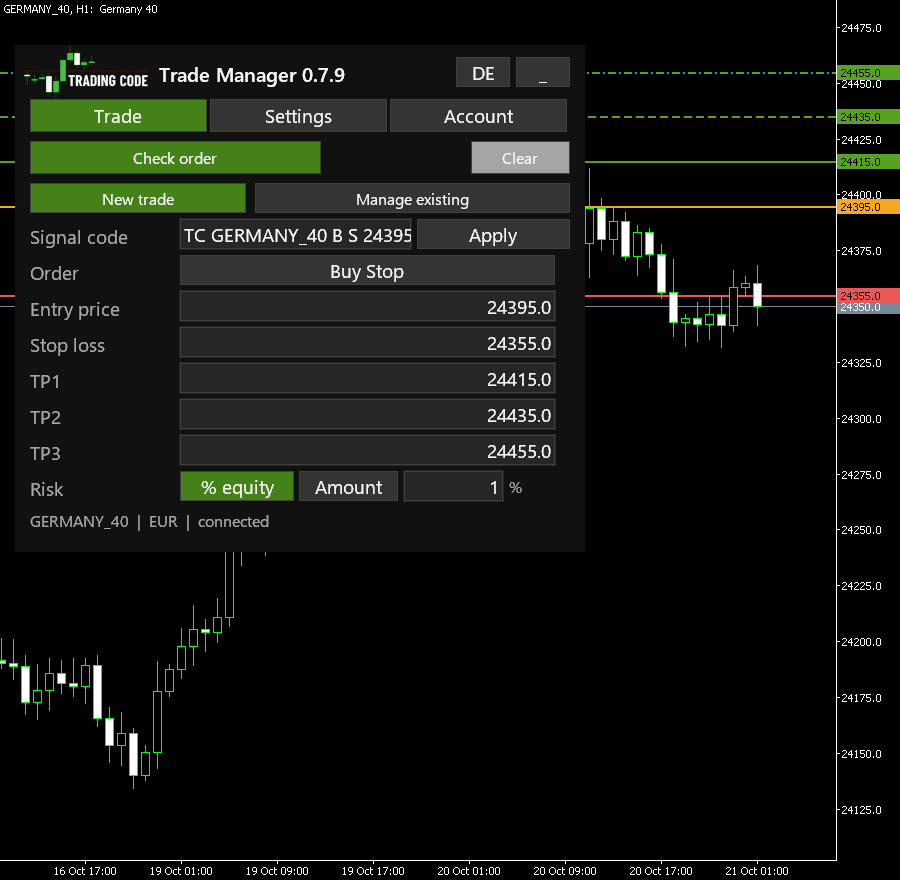
Header
- Logo and buttons: the TradingCode logo and the name with the version number (for example "Trade Manager 0.8.1"); next to it,
_folds the panel down to one line (+opens it again),DE/ENswitches the language. - Tabs: Trade (the order form and the running trade), Settings (stop rule, split, break-even, licence and updates) and Account (daily limits, chapter 11).
- Info line: instrument, account currency, connection. While a trade is running, also "management on" or "management off".
Inputs before the trade
| Field | Meaning |
|---|---|
| Signal code | Paste the code line from the channel signal and press Enter: fills order type, entry, stop and targets and checks the order (chapter 6.8). |
| Order | One button ("Select order" until you choose) opens the six order types: Buy Market, Sell Market, Buy Stop, Sell Stop, Buy Limit and Sell Limit. Select the exact type from the signal. |
| Entry price | Stop and Limit only. Type the price or drag the orange line on the chart. |
| Risk | % equity (percentage of your current equity) or Amount (in your account currency). The last valid percentage and amount are remembered separately for this trading account and currency, including after Clear, a completed trade and a terminal restart. The 1% input is used only when no percentage has been saved. |
| Stop loss | Type the price or drag the red line. Below the entry for a buy, above it for a sell. The stop loss is a price, not a distance: a value more than half the current price away is refused as soon as you type it, the field stays red and the message says what the distance would have meant (for example "For a distance of 20.00 that would be 24330.00"). |
| Take profit | Three fields: TP1, TP2, TP3. They fill themselves at 1R, 2R and 3R once the stop is set (chapter 4, step 6). On the DAX and the Nasdaq the channel setup pre-fills stop and targets instead (chapter 8, input "Pre-fill stop and targets from the TradingCode setup"). Each value gets a green line you can drag. |
| Stop rule (Settings) | Off (default): the stop stays where you put it; it can move to entry after TP1 only if the separate break-even option is enabled. Tight (Breakout) or Wide (Trend) also trail it after every candle (chapter 5); The rule uses the chart's timeframe; the check states it before placement. The rule is chosen per trade: after each trade and after Clear it is back to Off, and the review states it in words ("Stop rule: Off" or "Stop rule: Tight M5"). A rule other than Off is also shown in orange on the Trade tab before the check, for example "Stop rule: Wide M5 (Settings)". |
| Settings tab | Close per target % (the split of the take profits, for example 50/30/20) and Stop to entry after TP1 (On/Off). |
Stop or Limit? Both order types wait at your broker for your entry price:
| Signal | Direction | Entry | Entry price is |
|---|---|---|---|
| Buy Stop | Buy | Stop | above the current price |
| Buy Limit | Buy | Limit | below the current price |
| Sell Stop | Sell | Stop | below the current price |
| Sell Limit | Sell | Limit | above the current price |
Buttons
- Check order: works out the lot size, the estimated loss and the split across the targets at the current price. Nothing is sent.
- Place Buy Stop (or the selected order type): sends the checked order. This replaces Check order only after a valid check. Edit returns to the populated form without sending anything.
- Clear: resets the trade levels and stop rule, keeping your last valid risk setting.
After Check order you see: lots, your risk budget, the estimated loss at the stop, the order type with the entry (approximate market price or your order price) and the spread. With several targets, one line per target follows with its R multiple, its lots and the approximate profit, for example "TP1 1.17250 (1.0R): 0.05 Lots, approx. +12.50 USD". If the stop is more than 5% away from the entry, a red note says so ("Note: the stop is 8.2% away from the entry. The stop loss is a price, not a distance."). The estimates are not a guarantee: gaps and slippage can make the real loss larger.
Points in MetaTrader: MetaTrader's own tooltips count distances in points, the smallest price step of the symbol. On a DAX quoted with two decimals, 33.65 index points show as "points: -3365". The lines the Trade Manager draws name themselves and their price when you hover over them, for example "TP1 24410.00".
Messages: the area at the bottom of the panel shows red warnings first and in full, for example a licence problem or an order without a stop loss; they are not folded away behind "+N more". The other messages follow one at a time, "+N more" pages through them. Without a confirmed licence, Check order answers "Cannot check the order: the license is not confirmed. See the red message below."
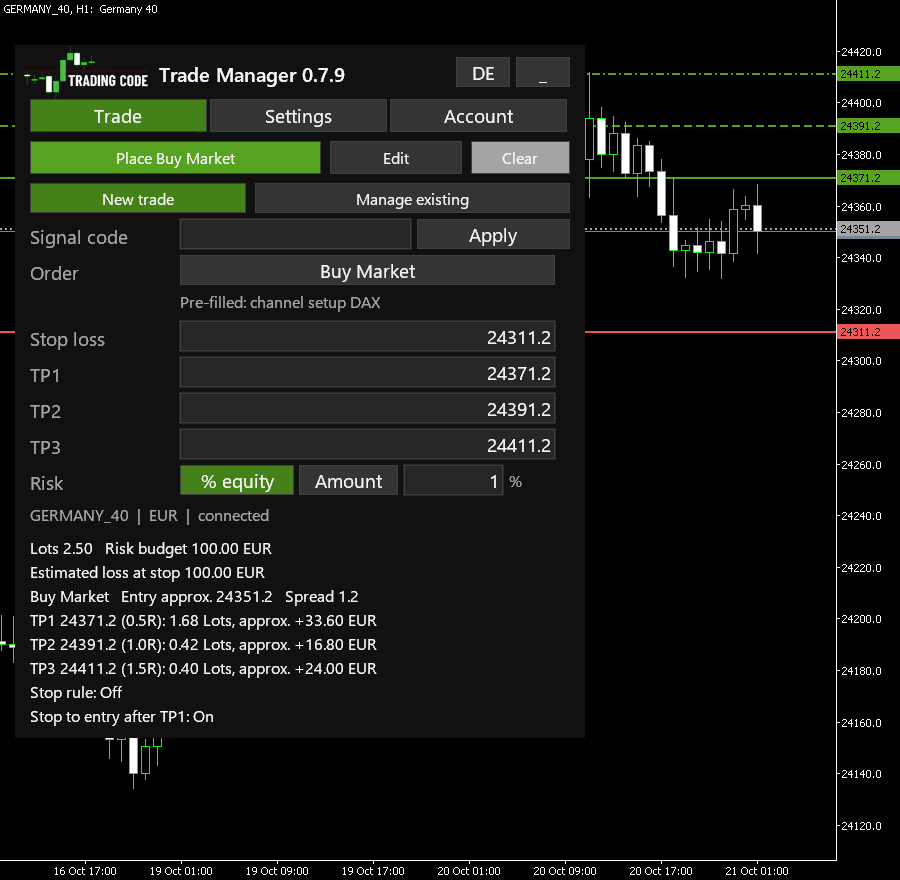
While an order is waiting
- The order with its type, lots, entry price, stop loss and targets.
- Cancel order: two clicks within 5 seconds (the first click shows "Really cancel? (5)" and counts down).
While a trade is running
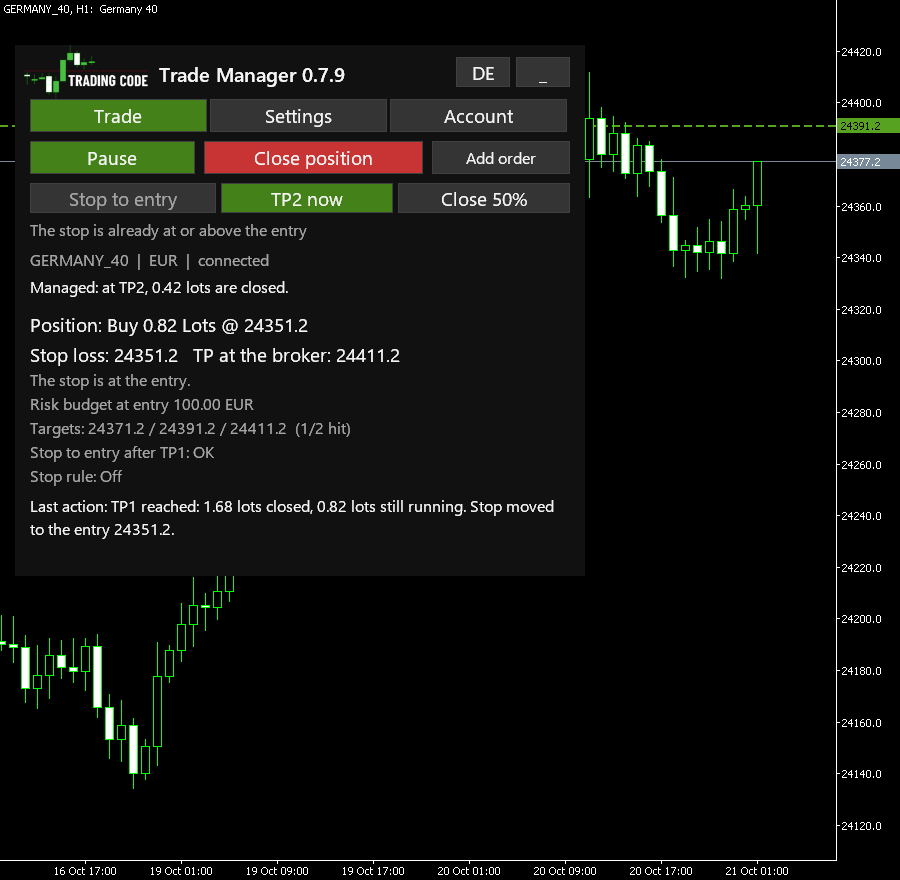
- Position, server stop, take profit, stop rule with timeframe and state (active or paused), the loss if the stop is hit now (it follows every stop move: at the entry it says "The stop is at the entry.", beyond it how far the stop lies past the entry (in the instrument's price) and roughly what amount that is; gaps, slippage and costs can change the result) and the risk budget at entry (it stays the budget of the entry, also after a part is closed).
- The status says what happens next, for example "Managed: at TP1, 0.42 lots are closed, then the stop moves to the entry." The number is the amount the tool closes at that target: after you closed a part with Close 25% or Close 50%, the line names the share of what is left (chapter 11). When that is too little, it says for example "Managed: 0.01 lots cannot be split; at TP1 25351.60 only the stop moves to the entry." After the last partial target: "Managed: the rest closes at the target ... or at the stop."
- With several targets: all TP levels on one line with the partial targets done, for example "Targets: 24410.00 / 24470.00 / 24530.00 (1/2 reached)". With the break-even option: "Stop to entry after TP1: On", and "OK" once done.
- TP1 now: while TP1 is still ahead, it takes the place of Close 25%. It closes at market the lots the "Managed" line names for TP1, the same the automatic TP1 would close (after a part closed by hand, the TP1 share of what is left, chapter 11), and then goes on as after TP1: stop to entry if switched on, TP2 and TP3 stay. It closes a large part, so it needs a second click within 5 seconds (the button counts down). After TP1 the same button reads TP2 now and closes the planned TP2 share; after the last partial target Close 25% returns, and Close position closes the rest.
- Stop to entry, Close 25%, Close 50%: one-click actions (chapter 11). When a button is grey, a short line below says why, and the buttons keep their place: "The stop is already at or above the entry", "Stop to entry: the price is behind the entry", "Stop to entry: price too close, broker: min. 5.0" (your broker's minimum distance, in the instrument's price) or "25% of 0.03 lots: below the broker minimum 0.01".
- Last action: for example "Stop moved from 1.13637 to 1.13752" or "TP1 reached: 0.08 lots closed, 0.02 lots still running. Stop moved to the entry 1.17250." When you take a target yourself with TP1 now or TP2 now, it says "TP1 taken by hand: 0.07 lots of Buy 0.10 @ 25311.60 closed, 0.03 lots still running." and stays there, also while the stop cannot go to the entry yet. Every quick action's result names the trade it acted on, for example "Closed 0.05 lots of Buy 0.10 @ 25311.60; 0.05 lots still running."
- Stop to entry not possible right now: after TP1 (automatic or with TP1 now) the stop is to go to the entry. With the price behind the entry (below it for a buy), it cannot. At the top of the trade, under the quick actions, an orange notice then says for example "Stop to entry not possible right now: the price is behind the entry. The rest runs with stop 29490.00." Under it is Close the rest: it closes the rest like Close position, with a second click within 5 seconds. If you let the rest run, the tool moves the stop to the entry as soon as the price allows; notice and button then go. When the price is ahead of the entry but closer than the broker allows for a stop, the notice names that minimum distance.
- Pause / Resume: stops or restarts the automation.
- Close position: two clicks within 5 seconds (the button counts down and does not move between the clicks). The question names the trade, for example "Close Buy 0.10 @ 25311.60: click again within 5 seconds."
- TP levels on the chart: MetaTrader shows only one take profit per position (the last target). The targets the Trade Manager closes itself (for example TP1 with a partial close) are shown as dashed lines until they are reached, with the trade's name, for example "TP1 Buy Stop (partial close)". This holds for every trade of the instrument, also for a second order the panel is not showing.
- Resolve / Acknowledge: only appears when the tool needs a decision from you (chapter 7).
4. Your first trade, step by step
Do this on a demo account first.
- Open the instrument's chart and choose a timeframe (for example H1).
- Select Buy Market or Sell Market, or the exact pending order type from the signal.
- Select the exact Order type from the signal. For Stop and Limit, enter the price in its own Entry row or drag the orange line.
- Check the risk: it is pre-filled with 1% of your equity. Enter another value if you want, for example
0.5. - Set the stop loss: drag the red line to your stop or type the price.
- TP1, TP2 and TP3 fill themselves at 1R, 2R and 3R from your stop (settings
Automatic TP1/TP2/TP3 at this risk/reward). They are calculated while you enter the trade: moving the stop or the entry price moves them along. For a market order Check order recalculates them at the price of that moment, so TP1 really sits at 1R even if the price moved since you typed the stop. Once the order is executed they no longer move. A target you type or drag yourself keeps its value; the targets you did not set still follow the stop at their R multiple. An automatic target that would not lie beyond the target before it (for example when you type a TP1 past the automatic TP2) moves behind that target at the same R spacing, and the panel says so. Clearing all three targets brings the automatic ones back. The targets from a signal code (6.8) are all fixed. - Stop rule (Settings tab): leave it Off, or choose Tight or Wide if the stop should be trailed automatically. On short timeframes such as M1 or M5 a trailing rule moves the stop close to the price quickly.
- Click Check order and read the numbers. Is the lot size right? Is the estimated loss what you want to risk? Does the split across the targets fit?
- Click Place with the order type, for example Place Buy Market. For Market the panel shows: "Buy 0.10 lots filled at ... Stop loss on the server: ...". For an order: "Buy Stop 0.10 lots at ... is placed at the broker, stop loss ...". If the risk is above your limit (setting
Max risk per trade, 5% of your equity by default) or above 20% of your equity, the first click only asks and names the amount, for example "Risk 612.40 EUR = 6.1% of your equity, above your limit of 5%"; click Send now within 5 seconds to send (the button counts down). The same for a market order from a signal code (6.8) whose TP1 lies less than 0.3R from the price: the price has run away from the signal, and the review says so in orange. For prices you type or drag yourself, and for the channel setup's pre-fill, the panel does not ask. - Leave MetaTrader running. Partial closes, break-even and stop moves only happen while MetaTrader runs.
If the price changes between Check order and Place, the tool checks again. If only the price moved and the reviewed size would now risk more than your budget, it sends the largest size that stays within the budget (at most the reviewed size) and says so, for example "0.07 lots sent instead of 0.08". If anything else changed (the stop is no longer valid, broker limits, an order price now on the wrong side), it sends nothing and shows the recalculated numbers: check them and click Place again.
After a trade or an order ends, the entry form is empty again: no direction, no levels, stop rule Off.
Before the first order: the Terms of Use. The first time you click Place in this MetaTrader, the panel shows the consent text for the Terms of Use with their address instead of the review (tradingcode.org/en/trade-manager/terms/; MetaTrader cannot open a browser from the panel, so type the address yourself). Accept stores your consent with the time and the version in MQL5/Files/TradingCodeTM/terms.consent and brings the review back; the order is sent only with your next click on Place. Cancel sends nothing. The panel asks once per MetaTrader installation, and once more when the Terms of Use change. Check order, taking over phone trades and managing running trades do not need the consent.
Two checks around the send. Before sending, the tool compares the calculated lot size with the one the broker's tick value and tick size give for the same risk and stop. If the two losses per lot differ by more than 20% and give other lots, the broker's data do not fit together: the panel says so in red and sends no order. After every fill the tool compares the stop and the lots at the broker with what it sent. A difference is shown in red in the panel and sent to your phone (when notifications are on), for example "Mismatch after the fill: stop at the broker 24310.0 instead of 24311.2". Then check the position in the Trade tab. If the tool detects a position without any stop, it closes that position and shows you a notice. Each order writes one line to the log (MQL5/Files/TradingCodeTM/logs/) with the version, your inputs, the lots, the broker's data, the confirmation and the server's reply.
How is an order sized? The lot size comes from the distance between your entry price and the stop loss. If the order fills with slippage, the panel shows the new estimated loss; the tool does not increase the size afterwards.
5. How the stop is managed
For both rules:
- Only completed candles count, on the timeframe that was set at review. For an order, stop management starts once it has filled.
- The stop rules only move the stop tighter, each time by at least one tick.
- The new level must be valid at the current price: on the right side and with your broker's minimum distance. If it is not yet valid, the tool keeps checking until the next candle and sets the stop as soon as the price allows. The panel then shows, for example: "Next stop level 1.13785 is not valid at the current price yet".
- For sells the chart shows Bid prices, but the stop is triggered by the Ask. The tool therefore adds the current spread.
- The take profits stay unchanged.
Tight (Breakout): when a candle closes in the direction of your trade, the stop moves to its close (one tick below it for a buy, one tick above it for a sell). Opposite candles and dojis are ignored. Suited to short, fast moves.
Wide (Trend): the stop only moves when a candle closes above the last confirmed swing high (for a buy). It then sits just below the last confirmed swing low. A swing high or low is confirmed once two more candles have closed. Suited to giving a trend room. While there is no matching structure, the panel shows "Waiting for confirmed structure".
Worked examples with numbers are in the stop rules guide.
Which timeframe? The smaller the timeframe, the closer the stop follows. On very small timeframes (M1, M5) the new level is often inside your broker's minimum distance and is set later. M15 to H1 is a good start for most trades.
Break-even together with a stop rule: with "Stop to entry after TP1" on, the tool moves the stop to the entry at TP1, unless the rule has already moved it tighter. After that the rule keeps tightening as usual, only tighter.
Pause, resume, your own changes
- Pause stops all automation: no stop moves, no partial closes, no break-even. The stop and take profit at your broker stay where they are.
- If you move the stop tighter yourself (in MetaTrader or in the phone app) or change the take profit, the tool takes over your values and carries on. The panel then shows: "Stop or target changed outside the panel ... Management continues".
- If you move the stop further away or remove it, the tool pauses so it does not work against your decision: "The stop was moved further away or removed outside the panel". Check the levels and click Resume. The tool then continues from your stop; the stop rules only move it tighter.
- To change the rule or timeframe of a running trade: Pause, choose the rule, Apply (also takes the chart's current timeframe), Resume.
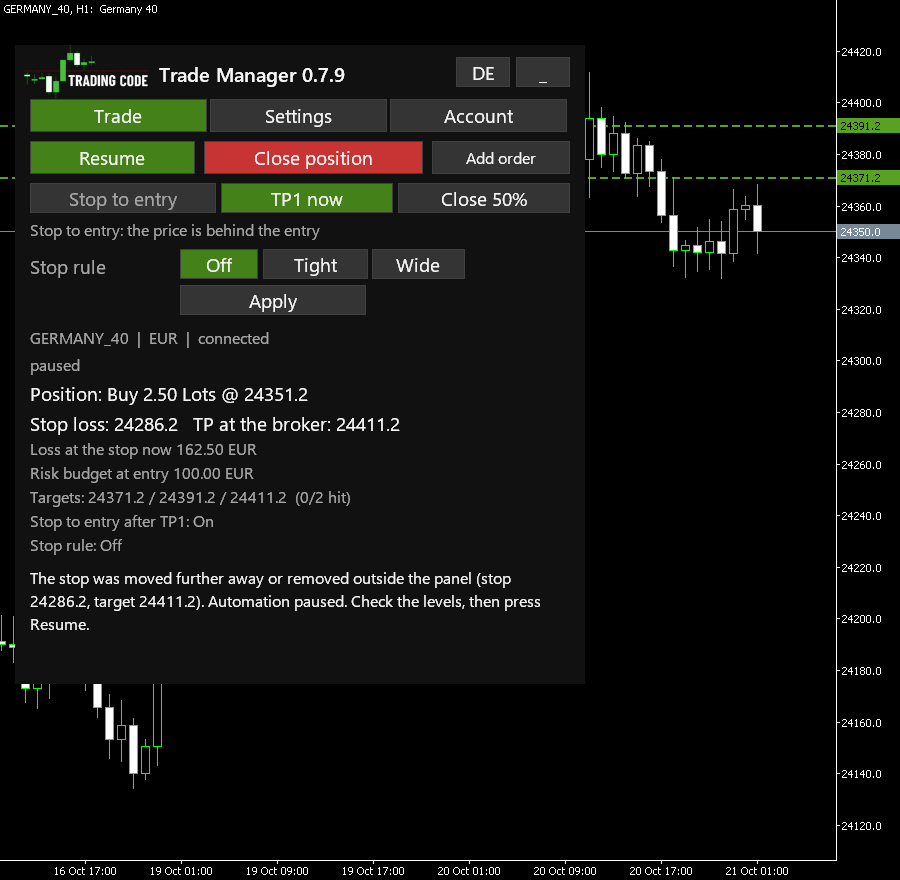
Restart and lost connection
The tool saves every trade and every order locally. It is built to recognise both after MetaTrader restarts, to send nothing while doing so, and to process the candles it missed in order. If the price has already passed a missed level, the server stop stays and the panel shows "Missed update". Without a connection the tool changes nothing; the stop loss and the last take profit at your broker keep protecting the position. A waiting order stays at your broker and fills even while MetaTrader is closed.
6. Trading the TradingCode signals
A trading idea in the channel looks like this:
New Trading Idea:
Market: GERMANY_40
Direction: Buy Stop
Entry: 24350
S/L: 24290
TP1: 24410
TP2: 24470
Scalp ideas also carry the note "Scalping (be quick)" and are traded at the market price (direction Buy or Sell). The numbers above are an example.
6.1 Preparation (once)
- Open a separate chart for every instrument traded in the channel and drag the Trade Manager onto it. Brokers name the same market differently: the DAX is GERMANY_40 at AvaTrade and #Germany40 at FxPro, the Nasdaq US_TECH100 at AvaTrade and #USNDAQ100 at FxPro. Open your broker's chart for the market in the signal.
- Choose a timeframe for the stop rule, for example M15 for scalps and H1 for longer ideas.
- Decide your risk per trading idea. In the signals service we work with 1 to 2% of the account per idea. You decide what suits you.
- "Stop to entry after TP1" on the Settings tab is On from the start, just as the channel moves the SL to the entry after TP1. If you do not want that, set it to Off; it applies to every new review on this chart.
6.2 Scalp signal (direction Buy or Sell, now)
- On the instrument's chart, choose Buy Market or Sell Market under Order.
- Check the risk: it is pre-filled with 1%, or enter your own value.
- Stop loss = the S/L from the signal.
- Type TP1, TP2 and, if given, TP3 from the signal.
- Stop rule: leave it Off or choose one (see 6.5).
- Check order, read the numbers, Place Buy Market (or Place Sell Market).
The tool sizes the trade for the actual distance from the current price to the S/L. If the price has already moved a little from the signal's entry, the size adjusts automatically so your risk stays the same. The review states for each target how many R away it lies. If the price is almost at TP1 already, skipping the signal is often the better choice. If you take the signal over with the signal code (6.8) and TP1 lies less than 0.3R from the price, the review says in orange "The price has run away from the signal", and placing needs a second click.
6.3 Pending signal (Buy Stop, Buy Limit, Sell Stop, Sell Limit)
For the example above (Buy Stop at 24350):
- On the DAX chart (GERMANY_40 at AvaTrade, #Germany40 at FxPro), choose Buy Stop under Order.
- Type
24350in the Entry price field. - Enter your risk, Stop loss
24290, TP124410and TP224470. - Check order, Place Buy Stop.
The table in chapter 3 shows which combination belongs to which signal. The lot size is worked out from the entry price to the stop loss.
The order then waits at your broker, with its stop loss and take profit. It fills even while MetaTrader is closed. The tool takes over partial closes, break-even and stop moves as soon as MetaTrader runs again. If you changed the order on your phone in the meantime, its new stop and targets count: a stop moved further away pauses the automation until you check it and press Resume, and if the tool detects a fill without any stop, it closes that position and shows you a notice. The order stays until it fills or is cancelled; if your broker does not allow that, it lasts until the end of the trading day.
"We are cancelling the order": click Cancel order in the panel and click again within 5 seconds. The panel shows "The order was cancelled" and you can review the next idea. If you delete the order in MetaTrader yourself, the tool notices that too.
The channel changes the entry? Cancel the order and review the idea again with the new values. If you change the order in MetaTrader, the tool takes over and shows the new values; the lot size then stays the old one.
6.4 TP1, TP2 and TP3
Type every target from the signal. The tool runs the trade like the channel: one part of the position per target, close the first part at TP1, stop to the entry, the next part at TP2, the rest runs. The split:
- With no split set, the channel's 4:1:1 (risk 1% / 0.25% / 0.25%): 67/17/16 for three targets, 80/20 for two. A position too small for that (with three targets, below about five minimum lots) is split evenly instead.
- Your own split on the Settings tab under Close per target %, for example
50/30/20for three or60/40for two targets. It must add up to 100. An order with another number of targets than your split has parts uses the standard split instead, and the review says so.
The lots per target come as close to the split as your broker's lot step allows and add up to the whole position: each part is rounded down, and the steps left over go to the targets with the largest remainder cut off. Examples: 0.22 lots with 4:1:1 are 0.15 / 0.04 / 0.03, 1.28 lots in three even parts 0.42 / 0.42 / 0.44.
This is how it runs, using 0.10 lots with TP1 and TP2 (split 80/20) as the example:
- One order with the full size sits at your broker, with the last target (here TP2) as its take profit; there are no separate orders for TP1.
- When the price reaches TP1, the tool closes 0.08 lots. The panel shows "TP1 reached: 0.08 lots closed, 0.02 lots still running".
- Your broker closes the rest at TP2, or the stop does.
The review shows the lots and the approximate profit per target beforehand. If you see only one line there although you entered three targets, something is wrong: do not confirm. If the position is too small to split (for example 0.01 lots with a minimum size of 0.01), the review says so and the whole position targets TP1.
Important: the partial closes at TP1 (and TP2 with three targets) are done by the tool, not by your broker. MetaTrader has to be running for that. If it is closed while the price touches TP1 and turns back, the full position stays open, protected by the stop loss and the last target at your broker. To keep MetaTrader running for the partial targets around the clock, use a VPS (see the phone and VPS guide).
6.5 Stop updates from the channel ("SL to BE", "trail the SL")
Three ways, which you can combine:
- Automatically at TP1: switch on "Stop to entry after TP1" on the Settings tab (see 6.1). At TP1 the tool moves the stop to your entry price, usually at once. When you take TP1 with TP1 now while the price is behind the entry, it cannot: then an orange notice at the top of the trade says "Stop to entry not possible right now: the price is behind the entry. The rest runs with stop ...", with the button Close the rest under it (second click within 5 seconds). If you let the rest run, the stop moves to the entry as soon as the price allows, and notice and button go. When the price is only too close to the entry for your broker's minimum distance, the notice names that distance.
- Following the channel by hand: if the channel writes "We are moving the SL to the entry (BE)" at another point, move the stop to your entry price in MetaTrader or in the phone app. Because that makes the stop tighter, the tool takes it over without pausing: break-even is now the floor, and the tool only tightens further by its rule.
- Only following the channel, no automation: click Pause straight after entry. The Trade Manager has then set size, stop and targets, and you move the stop only by the channel's updates. Note: while paused there are no partial closes either.
Which rule fits? For scalps, Tight on M5 or M15; for longer ideas, Wide on H1. If unsure: switch on break-even at TP1 and choose Wide on H1, which gives the trade room.
6.6 Closing messages
"TP reached", "SL hit" or "out at break-even": these closes happen automatically at your broker. The panel then shows "Position closed at the take profit", "Position closed by the stop loss" or, when the stop already sat at the entry, "The rest closed at the entry (break-even)", and you can trade the next idea. If the trade deleted orders of its OCO group, that follows, for example "OCO after TP1: Sell Stop 29909.05 deleted because this trade reached TP1."
6.7 Checklist for every signal
- Right chart (the symbol from the signal)?
- Exact Order type as in the signal? For Stop and Limit, the entry price?
- S/L and every TP from the signal entered?
- Risk entered in % or as an amount?
- Check order: are lot size, estimated loss and split plausible?
- Place (the button names the order type), then follow the channel's updates as in 6.3 and 6.5.
6.8 Signals in one step: the signal code
Every signal in the TradingCode channel ends with a line for the Trade Manager, for example:
TC GERMANY_40 B S 24350 24290 24410 24470
- Open the chart of the signal's market.
- Copy the line in Telegram (tap or click it) and paste it into the Signal code field at the top of the panel (Windows: Ctrl+V; Mac: Control+V, not Cmd+V), then press Enter (or click Apply). On a small chart the field sits at the top of the compact entry page.
- Order type, entry, stop and the signal's targets are set. With your risk set, the panel checks the order and the review shows lots, loss at the stop and the targets.
- Click Place to send it.
The code carries the symbol and prices of your channel's broker. On another broker's chart (for example #Germany40 at FxPro for a GERMANY_40 code) it is refused, because that broker's prices differ. Targets from a code stay as the signal has them; no automatic TP3 is added.
Format: TC [symbol] <B|S> <M|S|L> <entry or -> <SL> <TP1> [TP2] [TP3] (values in square brackets may be left out)
B= Buy,S= SellM= Market,S= Stop,L= Limit- For Market, write
-instead of the entry. Without it (TC B M 25620 25670 ...) the panel refuses the code, since the stop and targets would otherwise shift by one place. The other way round, a stop or limit order needs an entry price instead of-. - The symbol may be left out (
TC B S 24350 24290 24410): the chart's symbol applies. A leading#may be left out (USNDAQ100for#USNDAQ100), because#cannot be typed on every keyboard in MetaTrader. To paste, use Ctrl+V (Mac: Cmd+V) or right-click, Paste. - If something is wrong, the panel says what: which value is missing (for example "The signal code is missing the stop loss"), an unknown direction or order type, a value that is not a number, or a code for another broker. Hover over the field to see the format.
- When a code is refused, the panel empties order type, entry, stop and targets. So no order of an earlier code stays ready to send as if the new one had been taken over. The code stays in the field for you to correct. Once you then choose an order by hand or type a price, the refused code and its message go.
The field accepts at most 63 characters. To hide it, set "Show the signal-code field" to false in the inputs.
6.9 Trading signals on your phone: let the tool take over (optional)
Out and about and you see an idea in the channel? Open the trade in the MetaTrader app on your phone and leave the rest to the Trade Manager. It has to run on a computer or VPS that stays on (see the phone and VPS guide).
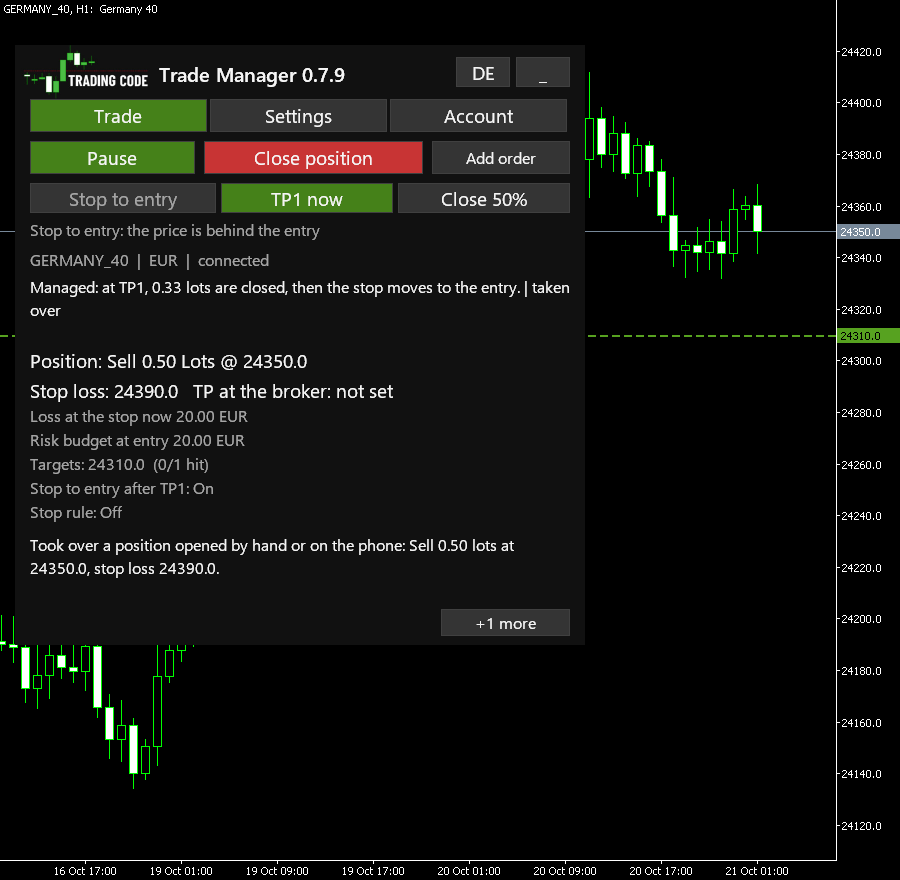
Switch it on once: in the Trade Manager's settings (Inputs tab, group "Trades opened by hand or on the phone"), set Manage trades opened by hand or in the phone app to true. It applies to this chart's instrument.
Then on your phone:
- Open the trade in the app, now or as an order.
- Set a stop loss. Without a stop loss the tool takes nothing over and reports: "A position opened by hand or on the phone has no stop loss".
- If you like, set the take profit, for example TP2 from the signal.
Within seconds the Trade Manager takes over the position. With phone notifications configured and enabled, it can report: "Took over a position opened by hand or on the phone". From then on:
- TP1 is at 1 times the distance between entry and stop (1R). There the tool closes 67% of the position (the channel's 4:1:1).
- After that it moves the stop to your entry.
- The rest runs to your take profit or to the stop.
- Trailing (Tight or Wide) is off until you choose it in the settings. The rule uses the chart's timeframe.
- If you tighten the stop on your phone, the tool carries on from your stop. If you move it further away, it pauses; you can only resume on the computer or via remote desktop.
Example: buy 0.20 lots at 1.17000 with the stop at 1.16880. The distance is 12 pips, so TP1 is at 1.17120. There 0.13 lots are closed and the stop moves to 1.17000.
The settings for this:
| Setting | Default | Meaning |
|---|---|---|
| Manage trades opened by hand or in the phone app | false | Switches take-over on for this chart's instrument |
| TP1 at this multiple of the stop distance | 1.0 | TP1 at 1R; 0 = no TP1 and no partial profit |
| Percent of the position closed at TP1 | 67 | Share closed at TP1 |
| Stop to entry after TP1 | true | Stop to the entry once TP1 is reached |
| Stop rule | Off | Off, Tight (Breakout) or Wide (Trend) |
| Also on these symbols | empty | Further instruments whose phone trades this chart also takes over, with your broker's exact symbol names, for example GERMANY_40,US_TECH100 at AvaTrade or #Germany40,#USNDAQ100 at FxPro |
| Phone orders on a symbol cancel each other (OCO) | false | Optional: when one of the waiting phone orders of an instrument fills, the others are deleted |
Good to know:
- Only positions opened after you switched it on are taken over, and only those without a magic number (by hand or in the app). Older manual positions can instead be selected explicitly with Manage existing (6.10). It does not manage other programs' trades.
- Switching it on means every new position opened by hand or on the phone on this instrument is managed. If you want to run a trade yourself, switch take-over off first or use another instrument.
- Up to five trades per instrument are managed at the same time, each on its own. If you open several, the tool takes over every one of them. A sixth stays unmanaged, and the panel names it.
- If the position is too small to split (for example 0.01 lots), nothing is closed at TP1; with Stop to entry after TP1 on, only the stop moves to the entry there. The panel says this in its managing line.
- Why a TP1 you did not set? The Trade Manager plans it from the input TP1 at this multiple of the stop distance, so a phone trade gets the same partial profit as a panel trade. The panel shows your own take profit separately as "TP at the broker". Set the input to 0 to keep only your own target.
- An order from the app (Buy Stop, Sell Stop, Buy Limit, Sell Limit) with a stop loss is taken over and managed as described once it fills. Orders placed before you switched take-over on are not taken over.
- Every phone order is its own trade. Only if you set Phone orders on a symbol cancel each other (OCO) to true do the waiting phone orders of an instrument exclude each other: when one fills, the Trade Manager deletes the others, and a notification says which orders are linked.
Several instruments from one chart: if you trade, say, Nasdaq and DAX on your phone, one chart is enough. Open the chart of one of them (for example the Nasdaq) and enter the other under Also on these symbols with its exact symbol name as your broker shows it in Market Watch (the DAX is GERMANY_40 at AvaTrade, #Germany40 at FxPro); separate several with commas (up to eight extra instruments). Below the info line the panel then shows what is happening there, for example "Phone trades also on GERMANY_40: Buy 0.20 Lots, TP1 OK". Notifications name the instrument.
- These further instruments have no panel. So the Trade Manager does not pause there when you move the stop further away on your phone; it takes over your stop and only tightens from there.
- If an instrument already has its own chart with the Trade Manager, that chart manages it, and the panel says "has its own chart".
- The stop rule uses this chart's timeframe for all instruments.
6.10 Open first, manage afterwards
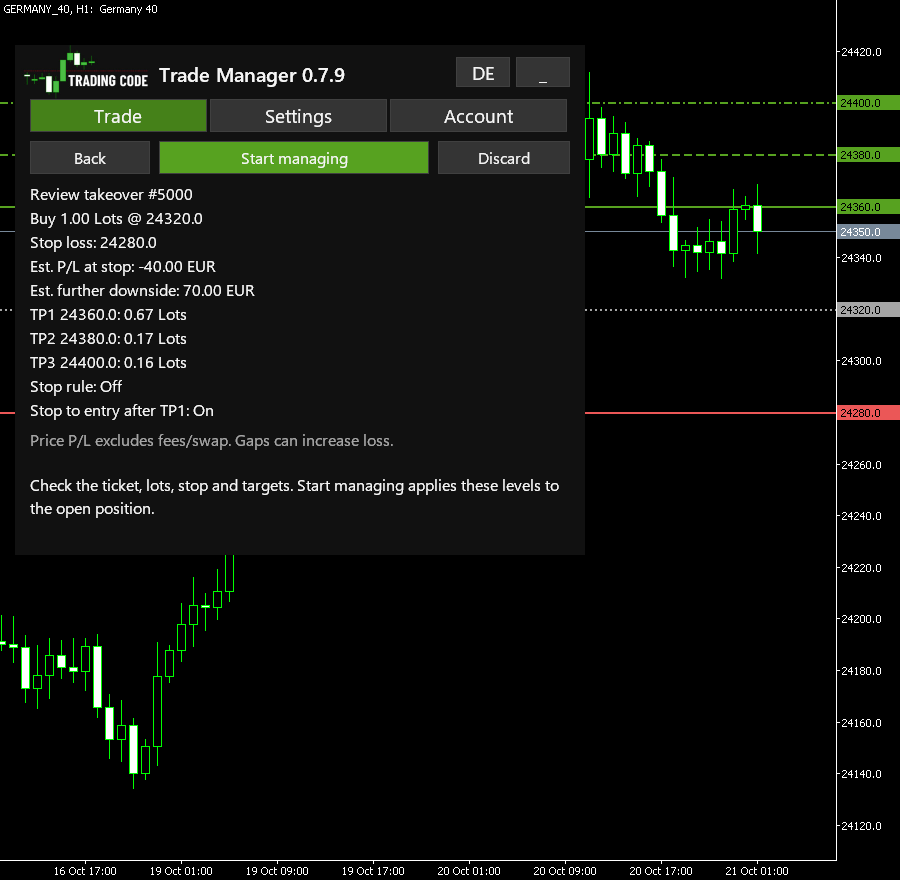
Already opened a manual trade with MetaTrader's one-click buttons or on your phone? Choose Manage existing in the Trade Manager. This also works for older positions and positions that have no stop loss yet. Automatic phone take-over does not need to be switched on.
- Open the chart of that position's instrument and choose Manage existing. The button sits above the empty order form. When the panel shows a running trade or an order, click Add order first; the empty form with the button then appears.
- Select the exact ticket. Check Buy/Sell, lots and original entry price. The manager keeps the existing volume; it does not open another trade or resize it to a risk percentage.
- Enter your stop loss. An existing stop and server take profit are prefilled. Add or edit TP1, and optionally TP2/TP3, using your trade plan or signal levels. Choose the split and stop-to-entry option under Settings, and Off / Tight / Wide trailing on the Trade tab as needed.
- Click Review. Check the ticket and levels, estimated price P/L at the proposed stop and estimated further downside from the current price. Price P/L at the stop excludes fees and swap. The further-downside estimate also excludes fees and swap. Gaps and slippage can change the actual result. No broker change happens during review.
- Click Start managing. The manager applies the reviewed stop and final target to that position. Partial targets and trailing start only after the broker's levels are confirmed.
Until the broker accepts a new stop, a position opened without one still has no confirmed stop protection. If the position changes after review, review it again. The manager does not silently switch to another ticket. If setup is waiting or rejected, Cancel ends the takeover without closing the trade or undoing broker levels already applied. A stop/target request already sent may still take effect after cancellation. You can then select the ticket and review again.
The feature supports manual positions on hedging accounts. Each position taken over this way is a trade of its own and uses one of the five places per instrument (6.11); a position the Trade Manager already manages is found under its button at the top, not under Manage existing. Positions belonging to another EA are excluded. For an already-open trade, the manager cannot establish its original risk at entry, so historical R is unavailable. You can still use monetary estimates in the review, partial exits and stop management.
If you want MetaTrader's one-click box visible while the manager is attached, set Hide the One Click Trading panel on this chart to false in Inputs, then enable the box in MetaTrader. Move the manager using its Panel position inputs if the two panels overlap.
6.11 Several trades on one instrument
The Trade Manager manages up to five trades per instrument at the same time, each on its own. Every order you place is an independent trade: a second signal on the DAX does not touch the first one.
- Place the first trade as usual (6.2, 6.3).
- Next to Cancel order or Close position, click Add order. The panel shows an empty form for the next trade.
- Enter it as usual, Check order, place it.
A row of buttons under the bar shows your trades, for example 1 Buy Stop and 2 Sell. They are numbered in the order the trades came in (sent, or taken over from the phone): the first phone position is 1, the one taken over after it 2. The highlighted button is the trade the panel shows below it, and a click on a button shows that trade. Each has its own Cancel order or Close position, partial targets, break-even and stop rule; TP1 now, Close 25% and 50%, Stop to entry and Close position act only on the trade shown, and their question or result names it (for example "Buy 0.10 @ 25311.60"). A trade that ends leaves the row and the others are numbered again without gaps; New order is last. From four trades on the buttons use two rows. When a phone position is taken over while the panel shows an empty form, the panel switches to that position. When an order of the OCO group the panel shows fills, the panel switches to the running trade.
Optional: OCO ("one cancels the other"). Sometimes you want two waiting orders to exclude each other, for example a Buy Stop above and a Sell Stop below the range, where the second order is cancelled once the first fills. For that, the review of a stop or limit order next to waiting orders shows OCO with Off chosen. Next to it are two choices:
- On fill: when one of the orders fills, the Trade Manager deletes the others. The review names them: "When one of these orders fills, the Trade Manager deletes the others: Buy Stop 24350."
- After TP1: the others are deleted only once a filled order has reached TP1. If it hits its stop before that, the others stay. Until then several can fill; the review says the combined risk. This is how the channel usually works: the opposite order goes after the first successful target.
Every new order starts with OCO Off again. You can always delete an order yourself: choose its button, Cancel order.
- With OCO On fill, the account limits (Account tab) count the linked orders once, at the larger risk, because only one of them can fill. Without OCO and with After TP1 each order counts in full, and the review says the combined risk.
- In a very fast market linked orders can both fill before one is deleted. The Trade Manager then manages both and tells you.
- If MetaTrader is closed when a linked order fills, the other one is deleted as soon as MetaTrader runs again.
7. Panel messages and what to do
| Message (short form) | What it means | What you do |
|---|---|---|
| Enter a risk greater than zero | No risk entered | Enter a risk, review again |
| The stop loss is on the wrong side / too close to the price | Stop not valid at the current price; "too close" names the broker's minimum distance | Check the strategy stop and broker distance; skip if incompatible |
| The take profit / The entry price is closer to the price than the broker allows (minimum distance: ...) | Target or order price inside your broker's minimum distance | Move it further away or skip |
| Not enough free margin for this size ... With this stop at most ... lots fit | The free margin does not cover the calculated size | Lower the risk, or click Set to maximum: ... lots: it sets the risk for these lots at the price of the click and checks again; the check shows these lots while the margin allows them. Nothing is sent |
| The broker allows only closing here right now, no new trades | The broker set the instrument to close only, even while prices move | Check: Market Watch, right-click the symbol, Specification, line Trade. Check again later or use another instrument |
| The price has run away from the signal: TP1 is only ...R away now (orange, in the review) | For a market order from a signal code TP1 lies less than 0.3R from the price | Consider skipping the signal; Place needs a second click within 5 seconds |
| 5 seconds passed, nothing was sent | The second click on Send now did not come within 5 seconds | Click Place again if you want to send |
| Pre-filled: channel setup ... | Stop and targets come from this market's TradingCode setup | Check them; every value stays editable |
| Enter an entry price for the stop or limit order | Stop or Limit without an entry price | Type the price or drag the orange line |
| The entry price does not fit the order type | For example a Buy Stop below the price | Swap Stop and Limit or check the price (table in chapter 3) |
| The take profits must follow each other in the trade direction | TP2 is closer than TP1 | Fix the order |
| The split must add up to 100 | Split not valid | For example 50/30/20, or clear the field |
| At ... lots the position cannot be split | Position too small for several targets | Accept the displayed TP1 fallback only if it fits the plan, or skip the trade |
| Even the smallest size would risk about ... | Even the minimum size exceeds your budget | Skip the trade or choose a suitable smaller contract; keep the strategy stop and risk budget |
| No fresh price (older than 30 seconds) | Market quiet or closed | Wait, review again |
| Set TP1 first | TP2 or TP3 without TP1 | Enter TP1 |
| Stop loss ... is too far from the price ... Enter the price where the stop should be, not the distance | You typed a distance (for example 20) instead of a price |
Type the stop price; the message shows what your distance would have meant |
| Note: the stop is ...% away from the entry (red, in the review) | The stop is more than 5% from the entry | Check that you entered a price; Edit to change it |
| Cannot check the order: the license is not confirmed | No key, an invalid key, WebRequest not allowed, or the licence not checked yet | Follow the red licence message below it (chapter 8, Licence and updates) |
| A price cannot be read or is more than half the current price away | Usually a thousands separator ("24.350" for 24350) | Type the price without separators, for example 24350.5 |
| The risk ... is larger than your equity | More risk than money in the account | Enter a smaller amount |
| High risk: ... is more than 20% of your equity | Large risk for one trade | Check it; click Send now within 5 seconds, or change the risk |
| Risk ... = ...% of your equity, above your limit of ...% | The risk is above the setting Max risk per trade |
Check it; click Send now within 5 seconds, or change the risk |
| Something changed since your review | Price or broker limits moved | Review again |
| Netting account: calculation only | Your account merges trades | Ask your broker for a hedging account |
| Algo trading is switched off | No orders or stop updates possible | Switch on the Algo Trading button |
| No connection to the trade server | The tool cannot change anything | Check the connection; the stop at your broker stays |
| ... is placed at the broker ... | Your order waits for the entry price | Nothing, or Cancel order |
| The order was changed outside the panel | You changed the order in MetaTrader | Check the new values |
| The order no longer has a stop loss | You removed the stop from the order | Set a stop or cancel the order; if the tool detects a position without a stop after the fill, it closes it and shows you a notice |
| The order's entry now lies past a take-profit level | You moved the order price past TP1 or TP2 | Partial closes and break-even are off for this order; review a new order if you need them |
| The order expired | Your broker removed the day order | Review the idea again if it still applies |
| TP1 reached: ... lots closed | Partial close done | Nothing |
| TP... reached, but the share would be below the minimum size | Part too small to close | Nothing, the position keeps running |
| The partial close at TP... was rejected | Broker refused | Nothing, the tool tries up to three times |
| TP... close not sent: no connection to the broker | The connection was gone at that moment | Nothing, the tool tries again |
| Stop to entry was not applied by the broker | The broker did not take the stop move | Click Stop to entry again |
| Previous action not confirmed by the broker yet | The broker's answer to a close is missing | Wait. After 30 seconds Resolve stands where Pause was: click it twice and the tool checks the position at the broker. Close position works meanwhile |
| Checked at the broker: the close was not executed | Resolve found the position unchanged | Nothing, a target close is tried again |
| Stop moved to the entry | Break-even done | Nothing |
| Stop to entry not possible right now: the price is behind the entry (orange, at the top of the trade) | After TP1 the stop cannot go to the entry yet | Let the rest run (the stop moves to the entry as soon as the price allows) or Close the rest and click again within 5 seconds |
| Next stop level ... not valid yet | New level too close to the price | Nothing, the tool keeps checking |
| The stop was moved further away or removed outside the panel | You moved the stop further away | Check the levels, Resume |
| Stop or target changed outside the panel ... Management continues | You tightened the stop or changed the target | Nothing |
| Took over a position opened by hand or on the phone | Take-over is switched on (6.9) | Nothing, or Pause |
| A position opened by hand or on the phone has no stop loss | Take-over waits for your stop | Set a stop loss |
| Missed update | After a restart the price had already passed the level | Check the chart |
| The order result is still unknown | Broker answer missing | Check the Trade and History tabs, then Resolve |
| WARNING: the position has no stop loss | Broker did not set the stop and closing failed | Close it or set a stop manually now |
| TradingCode position(s) with no local record | For example after reinstalling | Check, Resolve (they stay unmanaged) |
| Another chart already manages ... | Second chart with the same symbol | Use only one chart per symbol |
| Nothing sent: another chart with the Trade Manager kept the account busy for 2 seconds | Another chart was checking the account limits; the tool waited 2 seconds for it | Click Check order again |
| The first order needs your agreement to the Terms of Use | First click on Place in this MetaTrader, or the Terms of Use have changed (chapter 4) | Read the text, Accept, then Place; or Cancel |
| Terms of Use accepted | Your consent is stored, the review is back | Check the numbers, then Place |
| Cancelled, nothing sent. Without your agreement to the Terms of Use ... | You clicked Cancel | Nothing; the next Place asks again |
| No order: the broker's data do not fit together (red) | The broker's loss calculation and its tick value give other lots for your risk and stop (chapter 4) | Check the symbol's specification (Market Watch, right-click the symbol, Specification) or ask your broker; check again later |
| Mismatch after the fill: stop at the broker ... instead of ... (red) | The position has another stop at the broker than the one sent | Check the position in the Trade tab. If the stop is further away, automation pauses: check the levels, Resume |
| Mismatch after the fill: ... lots at the broker instead of ... (red) | More lots are open at the broker than were sent | Check the position in the Trade tab; close a part if needed |
| New version ... available (orange, above the messages) | tradingcode.org reports a newer version; the steps are in the messages | Update as in chapter 8, Licence and updates |
8. Settings
Open them with a right-click on the chart, Expert List, select the Trade Manager, Properties, tab Inputs. On Windows F7 works too, on a Mac fn+F7 (F7 alone is a media key there). The first column is the name exactly as MetaTrader shows it. Changes apply when you click OK; running trades are not affected.
| Setting (as shown in MetaTrader) | Default | Values | What it does |
|---|---|---|---|
License key (from your download page) |
empty | your key | The key from your personal download page. Without a valid key, new entries and new take-overs are blocked; trades already managed stay managed. Left empty, the Trade Manager uses the key tradingcode.org last confirmed in this MetaTrader. See "Licence and updates" below |
Language / Sprache |
Auto | Auto, English, Deutsch | Language of the panel and the notifications. Auto follows MetaTrader's language. The DE/EN button on the panel switches it while the Trade Manager runs |
Max. slippage for instant execution (points) |
20 | 0 or more | How far the fill may differ from the reviewed price, in points. Only used by brokers with instant or request execution; with market execution the broker ignores it |
Panel position X (px) |
10 | pixels | Distance of the panel from the left edge of the chart |
Panel position Y (px) |
30 | pixels | Distance of the panel from the top edge of the chart |
Send notifications to the MT5 phone app (MetaQuotes ID) |
false | true, false | Sends fills, stop moves, closes and warnings to the MetaTrader app on your phone. Needs your MetaQuotes ID under Tools, Options, Notifications (phone and VPS guide) |
Show the signal-code field (TC ... one-line codes) |
true | true, false | Shows the Signal code field on the panel for one-line signal codes (chapter 6.8) |
Panel size in percent (60-150) |
100 | 60 to 150 | Size of the panel and its text. Larger for high-resolution screens, smaller for laptops. Values outside the range are limited to it. The size applies after OK, no restart. The panel chooses its size so that it fits the chart, also in its tallest state (several trades, a review, messages), so no button jumps when a line appears. At 100 % that takes about 800 pixels of chart height, at 150 % about 1200, at 60 % about 500. With less, the panel shows the largest size that fits and the Settings tab says so, for example "Panel size 80% instead of 150%: the chart is too low for more." A taller chart window (maximise the window, hide toolbars or tool windows) gives the size you set |
Hide the One Click Trading panel on this chart |
true | true, false | Hides MetaTrader's One Click Trading box, which would otherwise cover the panel. It comes back when you remove the Trade Manager, also after a restart of MetaTrader |
Pre-fill stop and targets from the TradingCode setup |
true | true, false | On markets with a TradingCode setup (DAX, Nasdaq, set by TradingCode), choosing an order fills stop and targets as distances from the entry, for example DAX stop 40, TP1 20, TP2 40, TP3 60, and the split 4:1:1. The panel says "Pre-filled: channel setup DAX". It covers both brokers' symbol names (DAX: GERMANY_40 at AvaTrade, #Germany40 at FxPro; Nasdaq: US_TECH100 and #USNDAQ100). Everything stays editable; once you set a level yourself, the setup no longer moves anything. If you then choose an order your stop does not fit (for example Buy with a stop above the price), the setup fills in again. The setups come with the licence check from tradingcode.org; when they are older than a day on this computer or missing, the Trade Manager asks for them at the start. Why an order was pre-filled or not is written to the log (MQL5/Files/TradingCodeTM/logs/). false: stop and targets as on markets without a setup (R-based targets) |
Automatic TP1 at this risk/reward (R, 0 = off) |
1.0 | 0 or more | TP1 at this multiple of the distance from the entry to the stop, filled in as soon as the stop is set and moved along with it while you enter the trade. After the order is executed it no longer moves. A target you type or drag yourself keeps its value; the others still follow the stop. Clearing all three targets brings the automatic ones back. 0 switches automatic targets off |
Automatic TP2 at this risk/reward (R, 0 = off) |
2.0 | 0 or more | TP2 the same way (only with an automatic TP1). An automatic TP2 that would not lie beyond TP1 moves 1R behind it (at the default multiples). 0 means no automatic TP2 |
Automatic TP3 at this risk/reward (R, 0 = off) |
3.0 | 0 or more | TP3 the same way (only with TP2). An automatic TP3 that would not lie beyond TP2 moves behind it the same way. 0 means no automatic TP3 |
Risk pre-filled in the panel (% of equity, 0 = empty) |
1.0 | 0 or more | Initial percentage when this account has no saved percentage. Your last valid risk value and mode are remembered thereafter. 0 leaves the initial field empty |
Max risk per trade (% of equity, 0 = off) |
5.0 | 0 or more | If an order's risk budget is above this share of your equity, Place asks once and names the amount and the share, for example "Risk 612.40 EUR = 6.1% of your equity, above your limit of 5%". The order is sent only with a second click within 5 seconds (Send now, the button counts down). Above 20% of your equity the panel asks even without this limit. 0 switches the limit off |
Manage trades opened by hand or in the phone app (this symbol) |
false | true, false | Takes over trades opened by hand or in the phone app on this chart's instrument, once they have a stop loss. Only trades opened after switching it on (chapter 6.9) |
TP1 at this multiple of the stop distance (0 = no TP1) |
1.0 | 0 or more | For taken-over trades: TP1 at this multiple of the distance between entry and stop (1.0 = 1R). 0 means no TP1 and no partial profit |
Percent of the position closed at TP1 |
67 | 1 to 100 | For taken-over trades: the share closed at TP1. 100 closes the whole position at TP1 |
Stop to entry after TP1 |
true | true, false | For taken-over trades: moves the stop to the entry price once TP1 is reached |
Stop rule (uses this chart's timeframe) |
Off | Off, Tight (Breakout), Wide (Trend) | For taken-over trades: whether and how the stop is trailed, on this chart's timeframe (stop rules guide) |
Also on these symbols, comma-separated (e.g. GERMANY_40,#USNDAQ100) |
empty | up to 8 symbols | Further instruments whose phone trades this chart also takes over, without a panel. Commas, semicolons or spaces separate them. An instrument with its own Trade Manager chart is managed there |
Phone orders on a symbol cancel each other (OCO) |
false | true, false | Optional. true: orders placed by hand or on the phone on one instrument exclude each other; when one fills, the Trade Manager deletes the others still waiting (chapter 6.9). false: every order is its own trade |
The last seven belong to the group "Trades opened by hand or on the phone" and only matter when take-over is switched on.
Risk preferences are stored in MQL5/Files/TradingCodeTM/risk_*.prefs, separately for the account, broker server and account currency. Cash and percentage values never substitute for each other. Empty, unreadable and out-of-range percentage drafts do not replace the last saved value. A corrupted preferences file is ignored and the initial default is used.
On the panel's Settings tab: the stop rule, the take-profit split (Close per target %) and Stop to entry after TP1.
Licence and updates
- Licence key: you find it on your personal download page (link in the email after your purchase). Enter it in the inputs under License key.
- Once a day the Trade Manager asks tradingcode.org whether the licence is valid and whether there is a new version. For this, WebRequest for
https://tradingcode.orgmust be allowed under Tools > Options > Expert Advisors. The setting belongs to one MetaTrader installation: if you run terminals from two brokers side by side (for example AvaTrade and FxPro), allow the URL in each. Only the key and the version number are sent. After a successful check, Settings shows the time in your computer's local time, for example "License: valid, checked (2026-10-13 20:43)". - Without a valid licence only new entries and new takeovers of manual positions are blocked. Licence status does not disable management of trades already managed. Broker updates, partial closes and break-even still require a running, connected terminal with Algo Trading enabled and automation unpaused.
- After allowing the URL: click Recheck licence near the top of the panel to check immediately. A blocked WebRequest also retries every five seconds; other connection failures retry every ten minutes. No restart is needed. To correct the key, change Inputs > License key (chapter 8: right-click the chart, Expert List, Properties).
- Offline: a licence confirmed once stays valid for 30 days without a connection.
- New version: the panel shows "New version ... available". Updating takes five steps: 1. Download the new version from your download page. 2. In MetaTrader choose File > Open Data Folder, then open
MQL5andExperts(on a Mac Finder works too, see the installation guide). 3. Close MetaTrader. 4. ReplaceTradingCodeTradeManager.ex5in that folder with the new file (same name). 5. Start MetaTrader. Every chart loads the new version with its inputs; you do not need to enter the license key again. Use the same terminal data folder and keepMQL5/Files/TradingCodeTM/intact so the new version can recover the trade records. During the reload, partial closes and stop moves pause; server stops and targets remain. First rehearse the update on a demo account, then verify the recovered ticket, volume, stop, targets and settings before relying on management. - Lost the link? On tradingcode.org under Trade Manager, request access (
/en/trade-manager/access/) we send it to you again.
9. Limits
- Up to five independent trades (positions or orders) per instrument. The optional OCO link deletes waiting orders only, not an open position.
- Only hedging accounts trade; netting accounts only calculate.
- Partial closes, break-even and stop moves need MetaTrader running and connected. The stop loss and the last take profit sit at your broker. Phone apps cannot run Expert Advisors.
- One terminal per account: do not run the Trade Manager for the same account on a PC and a VPS at the same time.
- Automatic phone/manual take-over (6.9) covers positions opened after it was enabled. For an older manual position or one without a stop, use Manage existing and confirm its levels (6.10).
10. Frequently asked questions
After switching accounts, the Trade Manager disappeared from the chart. Why? When you switch to an account at another broker within one MetaTrader installation, MetaTrader turns Algo Trading off and removes Expert Advisors from charts whose symbol the new broker does not have (for example #Germany40 at AvaTrade). Open trades then run unmanaged, protected only by the stop loss and target at your broker. To avoid this:
- Use a separate MetaTrader installation for each broker, or switch accounts only when no managed trades are open.
- After every account switch: turn Algo Trading back on and check that the Trade Manager is still on the chart. Attached again, it is built to recognise its open trades without sending anything new; check stop and targets afterwards.
- The WebRequest permission for tradingcode.org applies to the whole installation, so to both accounts.
Why is my stop not being moved? Check the Last action in the panel. Often the new level is still too close to the price; the tool sets it as soon as the price allows. With Wide it waits for confirmed structure. And: paused? Algo Trading on?
Why was nothing closed at TP1? Was MetaTrader running at that moment? Was the automation paused? And did the review say "cannot be split"? Then the whole position targets TP1 at your broker.
Can I move the stop myself? Yes. If you tighten it, the tool simply carries on. If you move it further away, it pauses, you check and click Resume. After that the stop rules only move it tighter.
Does the Trade Manager work with other brokers? Yes, with any broker that offers MetaTrader 5 with a hedging account. You can see whether your account is one at the top of MetaTrader, in the title bar: it says "Hedge". On a netting account the Trade Manager only calculates and does not trade. It sizes the trade with your broker's data, also with other contract sizes or point values. Check the size before you send the order. Two things are set up for the brokers of our signal channels (AvaTrade in the German channel, FxPro in the English channel): the channel setup's pre-fill exists only for their DAX and Nasdaq symbols (GERMANY_40 and US_TECH100 at AvaTrade, #Germany40 and #USNDAQ100 at FxPro). And the signal code carries that broker's symbol and prices; on another broker's chart the panel refuses it, because prices differ from broker to broker. With another broker you enter the signal's entry, stop and targets yourself. To take the signals over in one step, use the broker of your channel.
What does 1% risk mean, and how many lots is that? 1% risk means: if the price reaches your stop, you lose about 1% of the equity on your trading account at your broker, not of all your savings. With 5,000 of equity that is about 50 at the stop. How many lots that is depends on the distance to the stop: a wide stop gives fewer lots, a tight one more. So 1% is not 0.01 lots. Before you send, the panel shows the lot size and the estimated loss at the stop in your account currency; check there that the amount fits. The panel pre-fills 1%; in the TradingCode signal channel we calculate with 1.5% per trade.
Why is there only one order at my broker instead of one per target? The Trade Manager sends one order with the full size. At your broker it carries your stop loss and the last target, TP3 with three targets. At TP1 and TP2 the Trade Manager closes the planned part itself while MetaTrader is running and connected (chapter 6.4). The check before sending shows how many lots each target closes.
Do I have to enter the license key again after closing the chart? No. If the License key field is empty, the Trade Manager uses the key tradingcode.org last confirmed in this MetaTrader. The Settings tab then shows "License: valid, checked".
Does the Trade Manager work on my phone? The Trade Manager runs in MetaTrader 5 on your computer, on Windows or Mac. It can't be installed in the MetaTrader app on your phone. You can still open a trade on your phone while you're out. As long as MetaTrader with the Trade Manager is open on your computer, it takes over the position and keeps managing it, for example TP1 and moving the stop to entry. Take-over is switched off by default. To switch it on: right-click the chart, Expert List, select the Trade Manager, Properties, tab Inputs, set Manage trades opened by hand or in the phone app to true, OK (chapter 6.9). Important: always set a stop-loss on your phone, otherwise the position won't be taken over.
What happens if I close MetaTrader? The stop loss, the last take profit and waiting orders stay at your broker. The tool is built to recognise its trade or order on the next start and to carry on.
Can I trade several instruments at once? Yes, with one chart per instrument.
What happens if I double-click a button? The panel is built so that a double click acts only once: a button responds only once it has been on screen for a moment, and the second click of a double click places, closes or pauses nothing extra. Where a second click is asked for, it counts only from a moment after the first.
Is the estimated loss exact? It is calculated with your broker's data, but it is an estimate: gaps and slippage can exceed it. Commission and swaps are not included.
11. Plan, manage and review
Choose the strategy's invalidation level first, then size the position to your chosen risk. The 1% equity prefill is an editable starting value, not a recommendation for every person or trade. Book methods, signal levels and your own decision determine the setup. On markets with a TradingCode setup the panel pre-fills that setup instead (input "Pre-fill stop and targets from the TradingCode setup"); it is a starting point you can change.
Panel size scales both controls and text. When the chart has too little room for the size you set, the panel gets smaller until it fits, and the Settings tab says so (chapter 8, "Panel size").
Plan preview. Before Check order, the panel estimates lots, loss at the stop, allocated target quantities, net planned reward and reward/risk. The chart shades the stop and target areas. Each target's distance in R is a price-distance multiple; the combined monetary ratio uses the broker's own profit calculation. Targets are calculated for their allocated quantities, not the whole position at every target. Preview sends no order. Check order and Place still validate the current quote and broker constraints.
A Wide/Trend trade can have no fixed take profit. In that case reward is unspecified; the preview does not invent a target or a profit forecast. Tight/Breakout and Wide/Trend stop rules are unchanged.
Profit and floating result are not repeated in the panel: MetaTrader shows them in the Trade tab and the status bar.
Quick actions. Stop to entry, Close 25% and Close 50% act on one click, without a confirmation step. Before sending, the tool checks the account, the position, its volume and the broker limits. The 25% and 50% refer to the volume remaining now and round down to the broker step; both the close and the rest must meet the broker minimum. If they cannot, the button is greyed out and the action is refused rather than turning into a full close.
What closes at the targets: for a trade placed from the panel, the parts come as close to the split as the volume step allows and add up to the whole position (6.4; 0.10 lots with 67/17/16: 0.07, 0.02 and 0.01 lots). For a taken-over position the TP1 share rounds to the nearest volume step: 67 % of 0.10 lots is 0.07 lots. If that would leave less than the minimum size, it rounds down. A discretionary partial does not complete TP1 and does not trigger the TP1 break-even option. Future scheduled targets keep their relative shares of the remaining volume: for a trade placed from the panel the rest is spread over the targets ahead by the same rule, for a taken-over position the share is rounded down to the volume step. If you close 50 % of this position by hand first, it is 67 % of the remaining 0.05 lots, so 0.03 lots. If a target would leave less than the minimum size, it closes the whole rest. The "Managed" line names this amount. When the share is below your broker's minimum size, nothing is closed at that target; at TP1 only the stop moves to the entry if the option is on. TP1 now and TP2 now close this amount; when it is below the minimum size they close nothing and count the target as reached. These buttons are tools for a decision you have made, not a prompt to take profit early on every trade. If a broker answer is uncertain, the manager waits for correlated execution evidence, including after restart; it does not resend merely because time passed or a phone trade reduced the volume. An unresolved action may require broker/support investigation.
Break-even. Stop to entry (manual or automatic after TP1) puts the stop on the entry price. There are no commission settings. A break-even action does not loosen an already tighter stop.
Account & entry limits. The Account tab shows "Closed P/L today", "Open P/L" and "Risk left today" at the top and the fields for the limits below. The further downside to the stops, the risk of pending orders and entries not yet settled are taken off the available risk (formula below). External positions are observed but are neither taken over nor changed. A missing stop, quote, conversion or financial history makes dependent figures unavailable.
The daily-loss latch is checked in the background, including while the panel is collapsed, at most once per broker second. It needs the running, connected terminal; losses between observations may not be captured.
Daily loss limit (in the account currency, which the field names, for example "Daily loss limit (EUR)"), maximum new trades per broker day and cooldown minutes after a fully closed net-losing managed trade all default to 0 / off. Apply saves one shared policy across this account's charts in this terminal; Discard brings back the saved values. A help line under the buttons on the Account tab says this. A settings change invalidates an older entry review. Start break uses the minutes in the field "Start a break now for (min)". Unlock today… needs a second click and clears the latch, so new entries are allowed again today; it does not erase losses, release uncertain reservations or bypass other limits.
Available risk is max(0, daily limit + min(booked today + floating, 0) - further stop downside - pending risk - unresolved risk). Floating losses are included once; profits do not expand the limit. Deposits, withdrawals and credits are excluded from trading results. If today has a balance booking and history contains a cancelled trade, the manager cannot reliably distinguish a correction from a deposit: today’s booked result and dependent money controls become unavailable. This may also affect a genuine deposit after an old cancellation; count and cooldown controls keep their independent evidence. The day rolls at the broker's calendar midnight. Pending and uncertain entries retain reserved slots across midnight; multiple fills of one idea count once. Cooldown begins at the final losing exit, not at a partial close or each restart.
Limits block new manager entries only. Existing stop management, permitted takeover and explicit reduction/close actions remain available. Existing broker pending orders and trades placed outside the manager can still execute. These are optional local controls, not tamper-proof account restrictions. Use one terminal per account; charts in another terminal do not share this ledger. Keep MQL5/Files/TradingCodeTM/ intact during upgrades, including the account .guard file.
Help: support@tradingcode.org
Risk warning: CFDs are complex instruments and come with a high risk of losing money rapidly due to leverage. A large share of retail investor accounts lose money when trading CFDs. The Trade Manager is a tool for managing your own orders and is not investment advice.