Simplify your MetaTrader 5 trading
Plan your trade. Let the Trade Manager carry it out.
You choose your entry, stop loss and targets. TradingCode Trade Manager calculates the position size and helps you place orders and manage exits directly in MetaTrader 5.
See the offer: EUR 99 one-time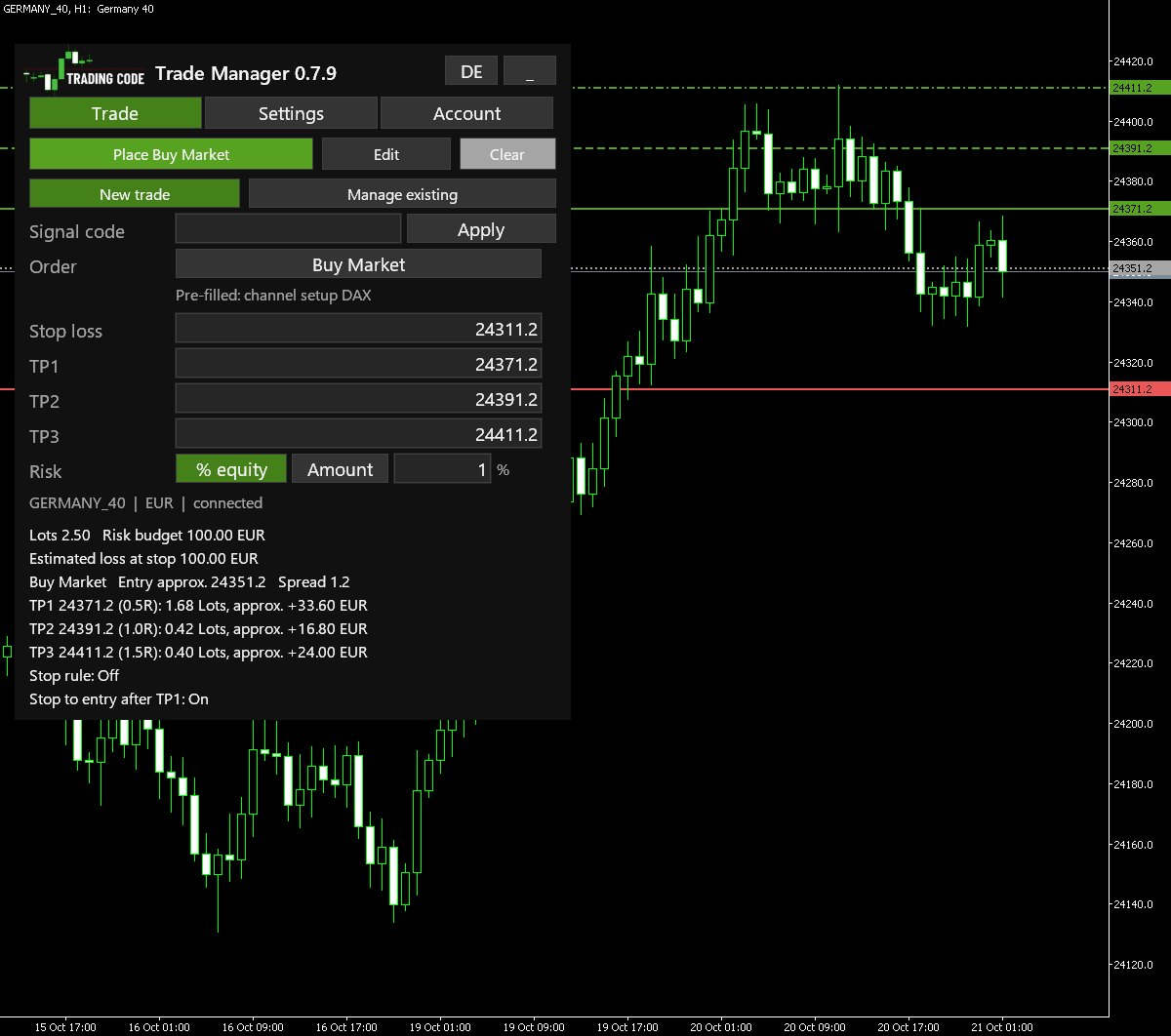
Picture your next trade. You have found the entry on the chart, the way The Trading Code describes it. Now comes the part where many people hesitate: how many lots is 1% risk with this stop? And when do I move the stop?
With the Trade Manager you choose the order, for example Buy Market, enter your risk, drag the red line to your stop and click Check order. The panel shows the lot size, your risk budget and the estimated loss at the stop. Only when you click Place Buy Market is the order sent. The stop is sent to your broker with the order.
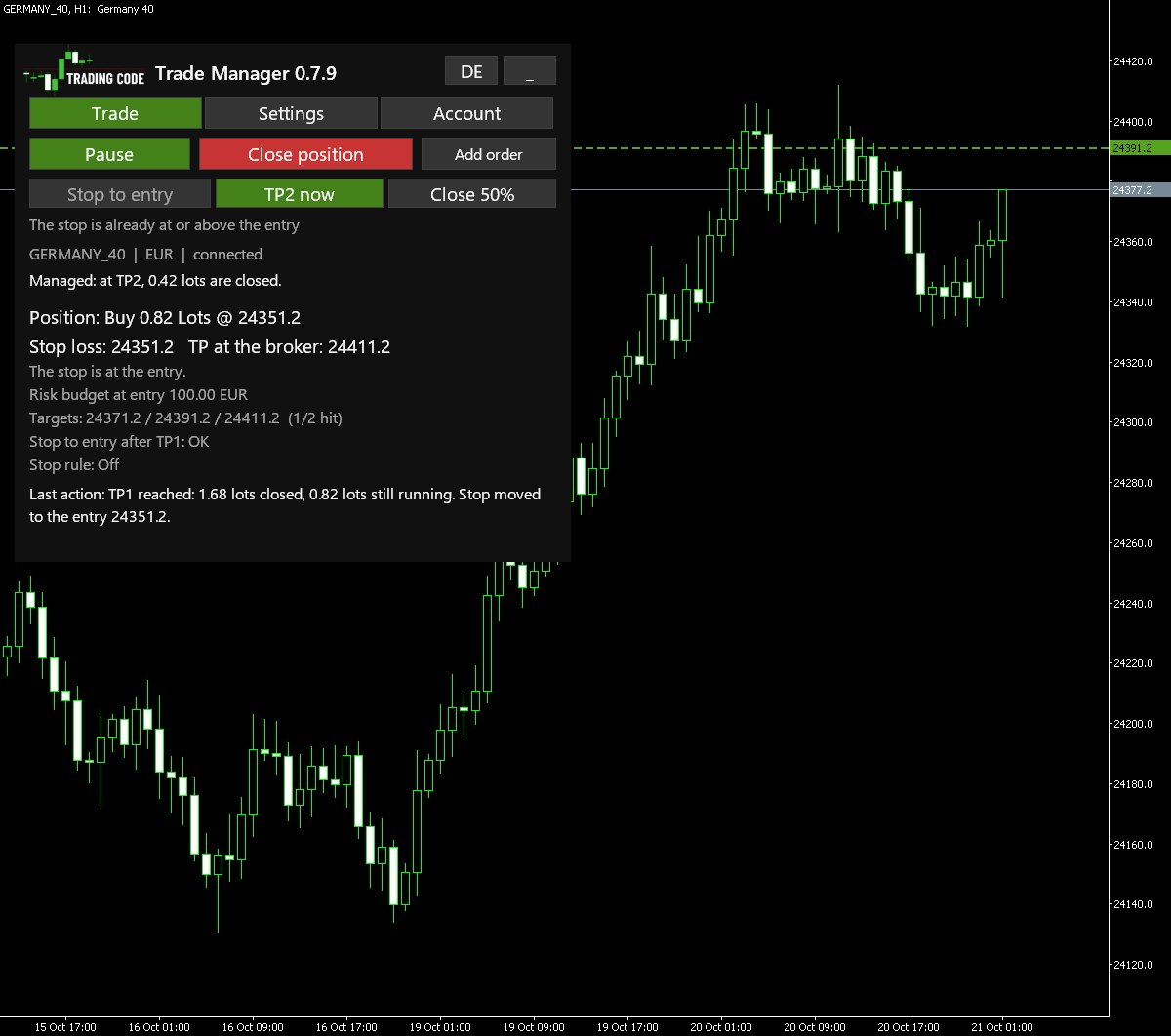
After that, while MetaTrader is running and connected, the tool looks after the trade: it closes the planned part at TP1 and TP2, moves the stop to your entry at TP1 if you want, and after every completed candle checks whether your chosen rule allows a tighter stop. You can pause or close the position at any time.
How it works
1. Copy the signal, paste it, done. Under every TradingCode signal there is a line for the Trade Manager. Copy it, paste it into the panel and press Enter: order type, entry, stop loss and all targets are set, and the lot size for your risk is worked out, including our 4:1:1 split. One click on Place and the order is at your broker. This works with the broker of your channel (AvaTrade in the German channel, FxPro in the English channel).
2. The size follows your risk, not the other way round. You enter your risk as a percentage of your equity or as an amount. It is pre-filled with 1%; you change it for every trade as you like. The tool uses your broker's data (tick size, contract size, minimum and step volume, minimum stop distance) and rounds down. If even the smallest allowed size would cost more than your risk, it sends no order and tells you why.
3. Two stop rules from chapter 12 of The Trading Code, turned into fixed rules.
- Tight (Breakout): when a candle closes in the direction of your trade, the stop moves to its close, with a small buffer.
- Wide (Trend): the stop only moves when the market closes above the last confirmed high (for a buy). It then sits just below the last confirmed low. A high or low only counts as confirmed once two more candles have closed.
4. The stop rules only move the stop tighter. Only completed candles count. Your take profits stay where you put them. There is no automatic entry: every trade starts with your click.
5. Enter now or by order. At the market price, or as a Buy Stop, Buy Limit, Sell Stop or Sell Limit straight from the panel. The lot size is then worked out from the entry price to the stop, and the stop loss and take profit are attached to the order at your broker.
6. Up to three targets with partial closes. Enter TP1, TP2 and TP3. The tool splits the position like the channel, in the ratio 4:1:1 (67/17/16 with three targets), or by your own split, for example 50/30/20. It shows you the lots and approximate profit per target beforehand and closes the planned part at each target. If you want, it moves the stop to your entry at TP1.
What you get out of it
- Fewer sums before the entry: the lot size is calculated from your risk and your stop, for forex, indices and metals. Check it before you send the order.
- Stop with the order: the stop is sent to your broker with the order. If the tool detects a position without a stop, it closes that position and shows you a notice.
- Trade signals faster: Buy Stop, Sell Limit, TP1 to TP3 and "SL to entry" are set in the panel, instead of a calculator and partial closes by hand.
- Stop management without hesitation: the rule decides the same way after every candle, even when you are not looking at the chart, as long as MetaTrader is running and connected.
- You choose what it manages: by default, the tool manages positions it opened itself. You can also choose to let it take over new manual trades. It does not manage trades from other programs.
- Clear in English and German: states and errors are explained in plain words, for example when your broker does not allow a stop that close to the price.
What it looks like in MetaTrader 5
Installation in seven steps
- In MetaTrader 5, choose File > Open Data Folder, then open
MQL5andExperts. - Copy the file
TradingCodeTradeManager.ex5into that folder. - In the Navigator, right-click Expert Advisors and choose Refresh.
- Before you drag the Trade Manager onto a chart: under Tools > Options > Expert Advisors, allow WebRequest for
https://tradingcode.organd click OK. - Drag the Trade Manager onto the chart of your instrument and tick Allow Algo Trading on the Common tab.
- On the Inputs tab, enter the licence key from your download page under License key and click OK.
- Switch on the Algo Trading button in the toolbar. The panel appears in the top left corner of the chart.
A detailed guide with notes for Mac and Windows is included. You can also read it first: the complete guide online, with every setting, TP1 to TP3 and the signals.
Your first trade with the Trade Manager
- Under Order, choose the order type: Buy Market or Sell Market for now, otherwise exactly the type from the signal, for example Buy Stop. For Stop and Limit, enter the entry price in its own row or drag the orange line.
- A red line appears: drag it to your stop or type the price.
- Enter your risk, as a percentage of your equity or as an amount, and your targets TP1 to TP3.
- On the Settings tab, leave the stop rule Off (the stop moves to the entry after TP1) or choose Tight or Wide if it should be trailed automatically.
- Click Check order and read the lot size, the estimated loss and the split across your targets.
- Click Place with your order type, for example Place Buy Market. The order goes to your broker with its stop loss.
- Keep MetaTrader running. Pause stops the automation, Close position (two clicks) ends the trade.
Our advice: place your first trades on a free demo account until you are comfortable with the steps.
Where many people get stuck
Most beginners know they should limit their risk. At the moment of the entry, though, the size is guessed instead of worked out, the stop goes in later than planned, and moving it becomes a gut decision. That is human, and it happens most when things move fast.
The Trade Manager does not take these steps away from you to trade on your behalf. It is built to carry out your own decision the same way every time: the same calculation, the stop sent to your broker with the order, the same rule after every candle.
Requirements and limits
You need:
- MetaTrader 5 on a computer: Windows or the MetaTrader 5 app for Mac. The phone apps cannot run Expert Advisors.
- An MT5 account that keeps multiple positions in the same market separate, so the Trade Manager can manage each position individually. This is called a hedging account. If your account combines all positions in one market into a single position (netting), the tool can calculate but cannot open trades.
- MetaTrader running and connected for stop moves, partial closes and the stop to entry. The stop loss, the last take profit and waiting orders sit at your broker and stay in place even when your computer is off.
Good to know:
- The tool is not a signal service or a trading robot. It does not open trades by itself.
- It is not investment advice and promises no profits.
- It manages up to five trades per instrument, each on its own. Optionally you can link two waiting orders: when one fills, it deletes the other (OCO).
- Like any software, the Trade Manager can contain errors. Test it on a demo account first and check every order before sending it and after it is filled.
TradingCode Trade Manager
One-time purchase, no subscription
What you get:
- The Trade Manager for MetaTrader 5 as a download with a personal licence key, in English and German
- The PDF handbook: installation, controls and examples of the stop rules and how to execute TradingCode signals
- Updates and support for two years from purchase
The seller and contractual partner is Digistore24 GmbH. Consumers have a 60-day refund period. The Digistore24 terms are provided at checkout and in your order confirmation. Digistore24: terms and cancellation policy · Trade Manager: Terms of use
Frequently asked questions
What is included in the one-time purchase?
For EUR 99 you receive the Trade Manager for MetaTrader 5 with a personal licence key, the panel in English and German and the handbook covering installation and controls. Updates and support are included for two years from purchase. There is no subscription or recurring licence fee.
How can I request a refund?
Consumers have a 60-day refund period through Digistore24. To request a refund, use the link in your Digistore24 order confirmation. The Digistore24 terms are provided at checkout and in your order confirmation.
Where can I get help?
For help with installation or using the software, email support@tradingcode.org with your Digistore24 order number. Updates and support are included for two years from purchase.
Does the Trade Manager work on a Mac?
Yes, with the MetaTrader 5 app for Mac. The acceptance test on the real account ran there. Expert Advisors do not run on iPhone, iPad or Android phones.
What does 1% risk mean, and how many lots is that?
If the price reaches your stop, you lose about 1% of the equity on your trading account at your broker, not of all your savings. With £5,000 of equity that is about £50 at the stop. How many lots that is depends on the distance to the stop: a wide stop gives fewer lots, a tight one more. So 1% is not 0.01 lots. Before you send, the panel shows the lot size and the estimated loss at the stop in your account currency; check there that the amount fits. The panel pre-fills 1%; in the TradingCode signal channel we calculate with 1.5% per trade.
Why is there only one order at my broker instead of one per target?
The Trade Manager sends one order with the full size. At your broker it carries your stop loss and the last target, TP3 with three targets. At TP1 and TP2 the Trade Manager closes the planned part itself while MetaTrader is running and connected. The check before sending shows how many lots each target closes.
Does the Trade Manager work on my phone?
The Trade Manager runs in MetaTrader 5 on a Windows computer or a Mac. It cannot be installed in the MetaTrader app on your phone. A trade you open on your phone while you are out is still taken over and managed, as long as MetaTrader with the Trade Manager is running on your computer. For that, set "Manage trades opened by hand or in the phone app" to true in the inputs. Always set a stop loss on your phone, otherwise the trade is not taken over.
Does the Trade Manager work with other brokers?
Yes, with any broker that offers MetaTrader 5 with a hedging account. You can see whether your account is one in the MetaTrader title bar: it says "Hedge". The tool sizes every trade with your broker's data, also with other contract sizes. Check the size before you send the order. Two things are set up for the brokers of our signal channels (AvaTrade in the German channel, FxPro in the English channel): the channel setup's pre-fill for the DAX and the Nasdaq, and the Trade Manager line under the signals, which carries that broker's symbol and prices. With another broker you enter entry, stop and targets yourself. Try your instrument on a demo account first.
Does my computer have to stay on?
For stop moves, the partial closes at TP1 and TP2 and the stop to entry, yes: MetaTrader has to be running and connected. The stop loss, the last take profit and waiting orders sit at your broker and stay in place even when your computer is off. The tool is built to recognise its trade after a restart and to process the candles it missed, in order. If you want it running around the clock, use a VPS; the guide for that is included.
Will the tool change my other trades?
Only if you switch it on. It manages positions it opened itself. It takes over manual trades only if you switch take-over on for an instrument, and then only trades opened after that. It does not manage trades from other programs.
What happens if I move the stop myself?
If you move it tighter, the tool takes over your stop and carries on. If you move it further away or remove it, the tool pauses and asks you to check the levels. After Resume it carries on from your stop. The stop rules only move the stop tighter.
Can I use the Trade Manager on a demo account first?
Yes, and we recommend it. It works the same way on demo and live accounts.
Does the Trade Manager provide trading signals?
No. The Trade Manager helps you carry out your own trading decisions. It does not provide trading signals or choose entries for you. You set the entry, risk, stop loss and targets, then confirm the order yourself. The tool calculates the position size, sends your order and manages exits according to your instructions. A signal service is not included in the purchase.
Can I use it to trade the TradingCode signals?
Yes, that is what it is built for, and the user guide has its own chapter on it. Under the signals there is a line for the Trade Manager. Copy it, paste it into the Signal code field on the panel and press Enter: order type, entry, stop and every target of the signal are set, and with your risk entered the panel checks the order. One click on Place sends it. This works with the broker of your channel (AvaTrade in the German channel, FxPro in the English channel). The tool closes the matching part at each target. It can handle "SL to BE" at TP1 by itself, and when the channel writes "we are cancelling the order", two clicks on Cancel order are enough.
How do I get updates?
Updates and support are included for two years from purchase. Download the available versions from your personal download page. The Trade Manager checks daily for a new version and shows it on the panel. If you lose your access link, you can request it again on our site.
Does the Trade Manager need an internet connection?
MetaTrader is online anyway. On top of that the Trade Manager asks tradingcode.org once a day about your licence and new versions; for that you allow the address https://tradingcode.org in MetaTrader once. A confirmed licence stays valid for 30 days without a connection, and the licence status does not switch off the management of running trades.
Does the Trade Manager guarantee profits or a maximum loss?
No. The loss shown at the stop is an estimate. Price gaps and slippage can make the real loss larger. Profits depend on the market and your trading decisions, not on the tool.
How do I get the download and my licence key?
After payment confirmation, support@tradingcode.org emails you a link to your personal download page. It contains the software as a ZIP file, the guides and your personal licence key. Digistore24 sends your order confirmation and invoice. The thank-you page explains the next installation steps.
What if I have a netting account?
Then the tool shows you the calculation but sends no orders. It is built this way so that a trade from the panel does not merge with another trade into one position. Ask your broker whether they can set up a hedging account for you.